• Point of Sale
  • Categories
    • Getting Started with SalesPlay
    • Web POS
    • Sales
    • Product
    • Inventory
    • User
    • Customers
    • Reports
    • Settings
  • Community
  • Point of Sale
  • Categories
    • Getting Started with SalesPlay
    • Web POS
    • Sales
    • Product
    • Inventory
    • User
    • Customers
    • Reports
    • Settings
  • Community
Home/Knowledge Base/Sales/How to Calculate Sales Commission

How to Calculate Sales Commission

February 10, 2026

Special Note

  • To calculate sales commission, first create the receipt(s) and assign employee(s) to the receipt(s).
    • To assign employees, create ‘Other Staff’ from Back Office.
    • Instructions: How to Create Other Staff
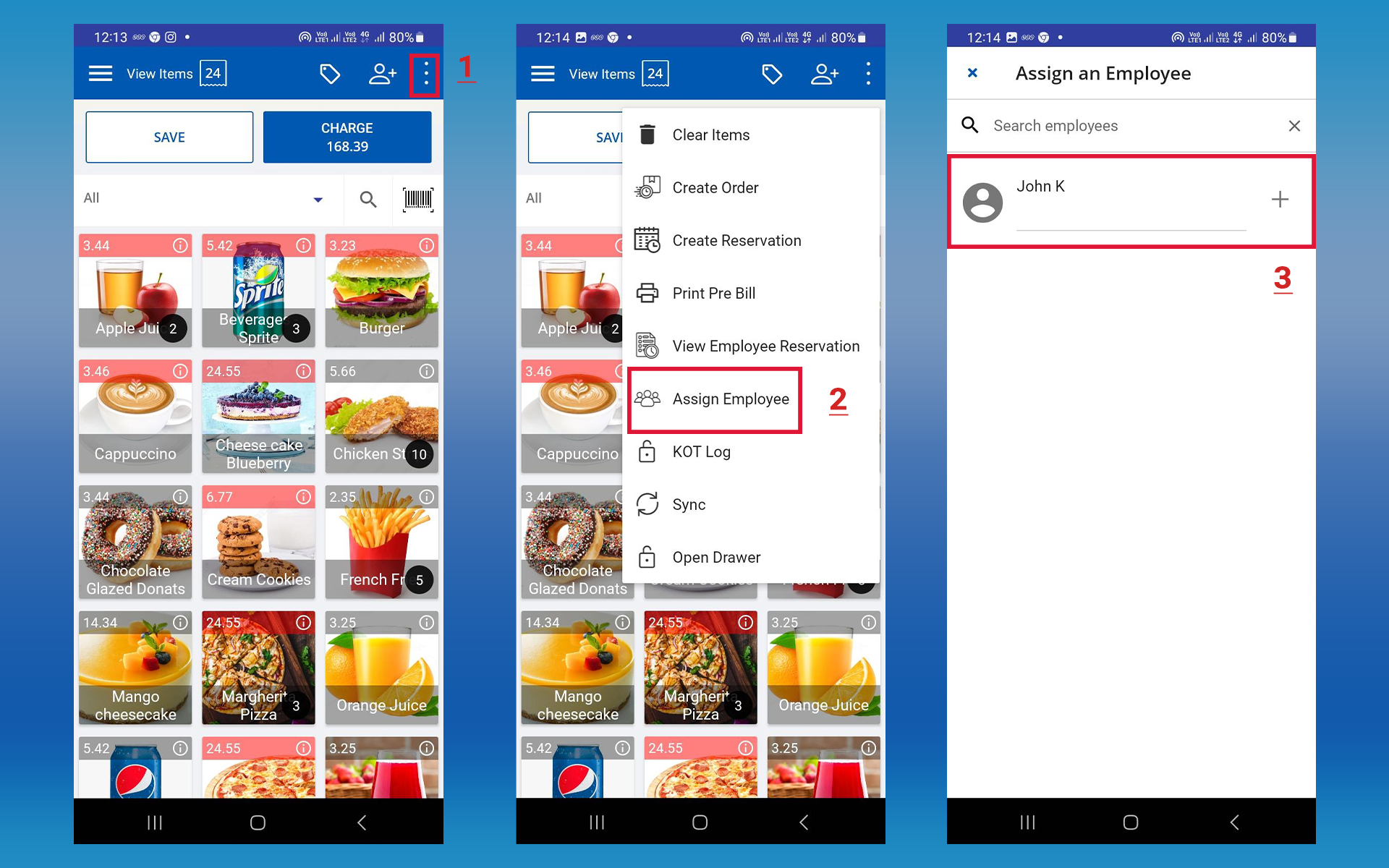
  • To assign staff, click the three-dot button in the top-right corner in POS App → Select ‘Assign employee’ → Choose employee name.

Sales Commission

  • Sales commission rewards an employee/staff with a percentage of the sales they generate. Common in restaurants, textile stores, salons, and service-based businesses.
  • Each employee/staff is assigned a unique code or name. The system tracks sales and calculates commission based on the agreed percentage or number of receipts.
  • Commission motivates employees to increase sales and rewards top performers, helping retain talent.

Calculate Sales Commission via Back Office

Sales commission can be calculated via the Back Office web portal based on percentage or number of receipts. Reports can be downloaded as PDF or printed.

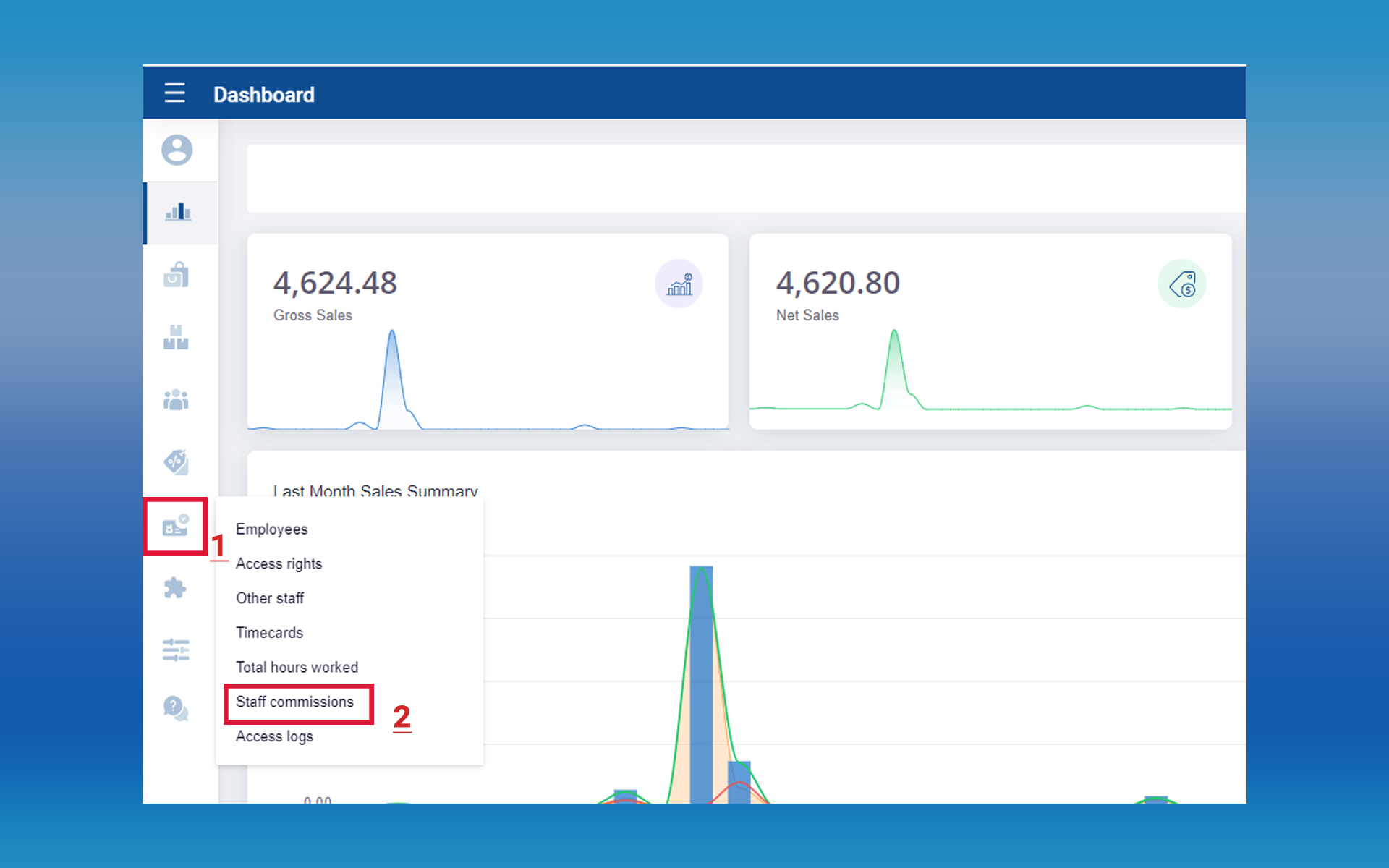
1. Login to POS Back Office → Select “Users” → Go to “Staff Commissions”


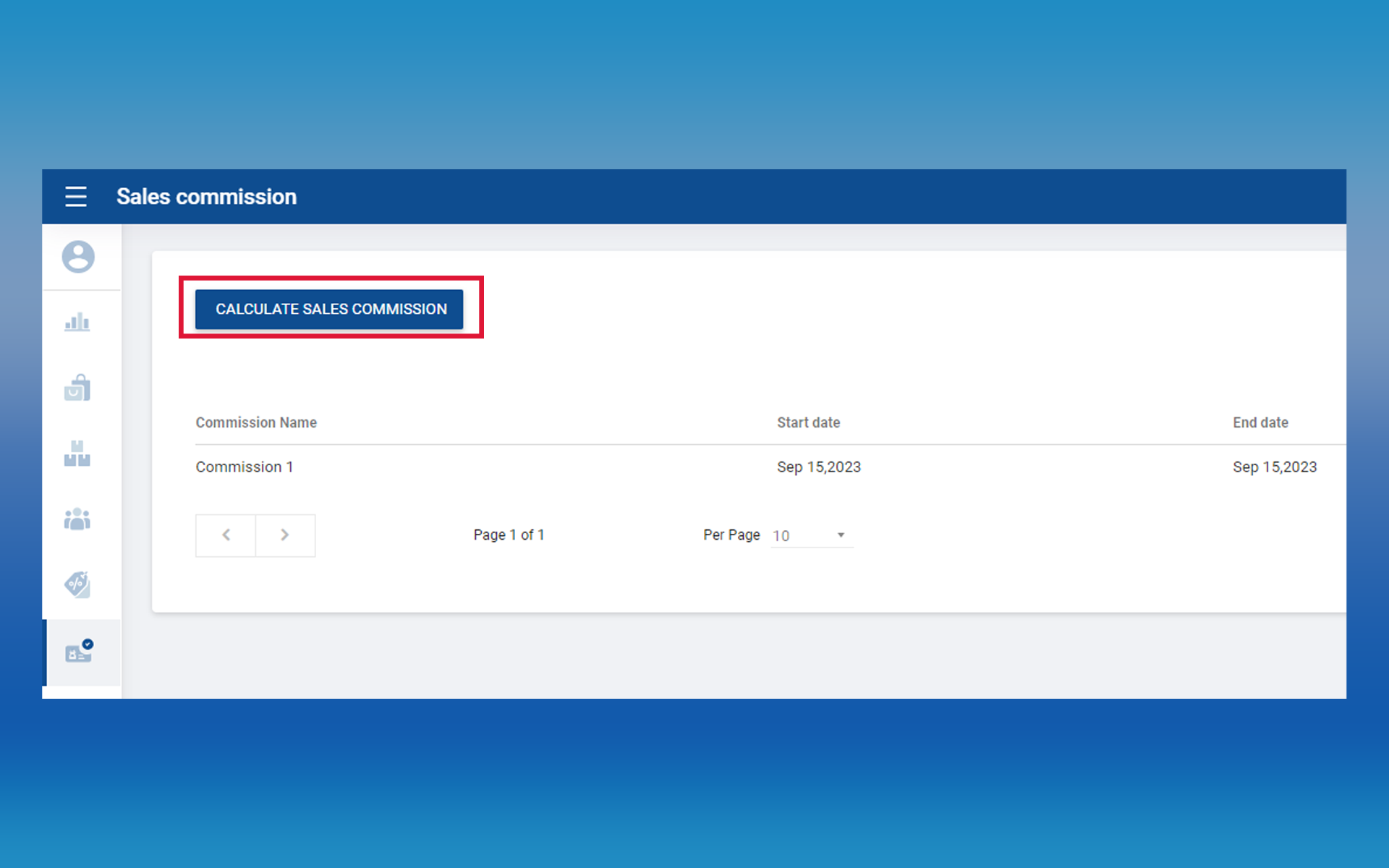
2. Click the “Calculate Sales Commissions” button


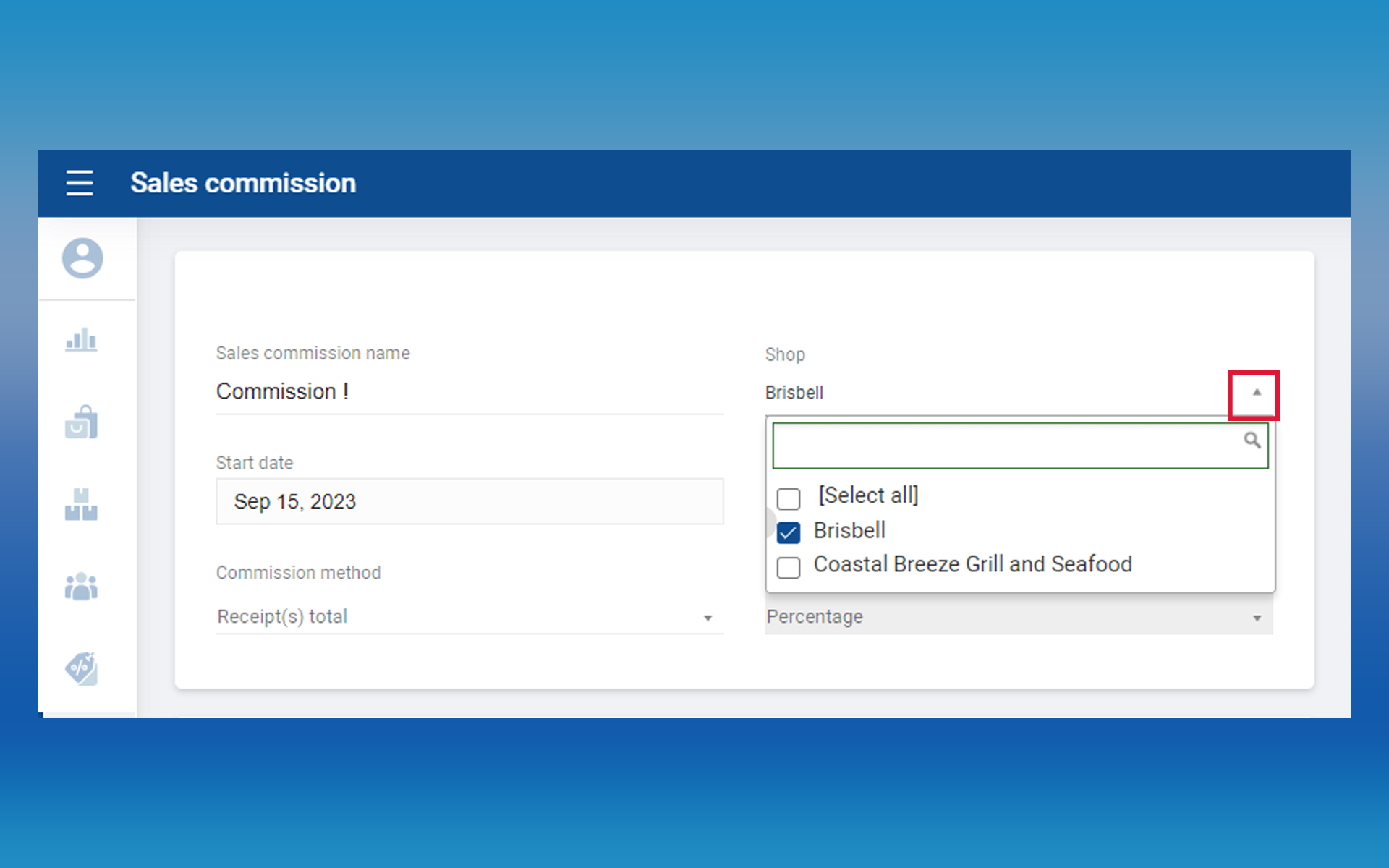
3. Enter commission name and select shops → Select “commission method” (Total or Count)


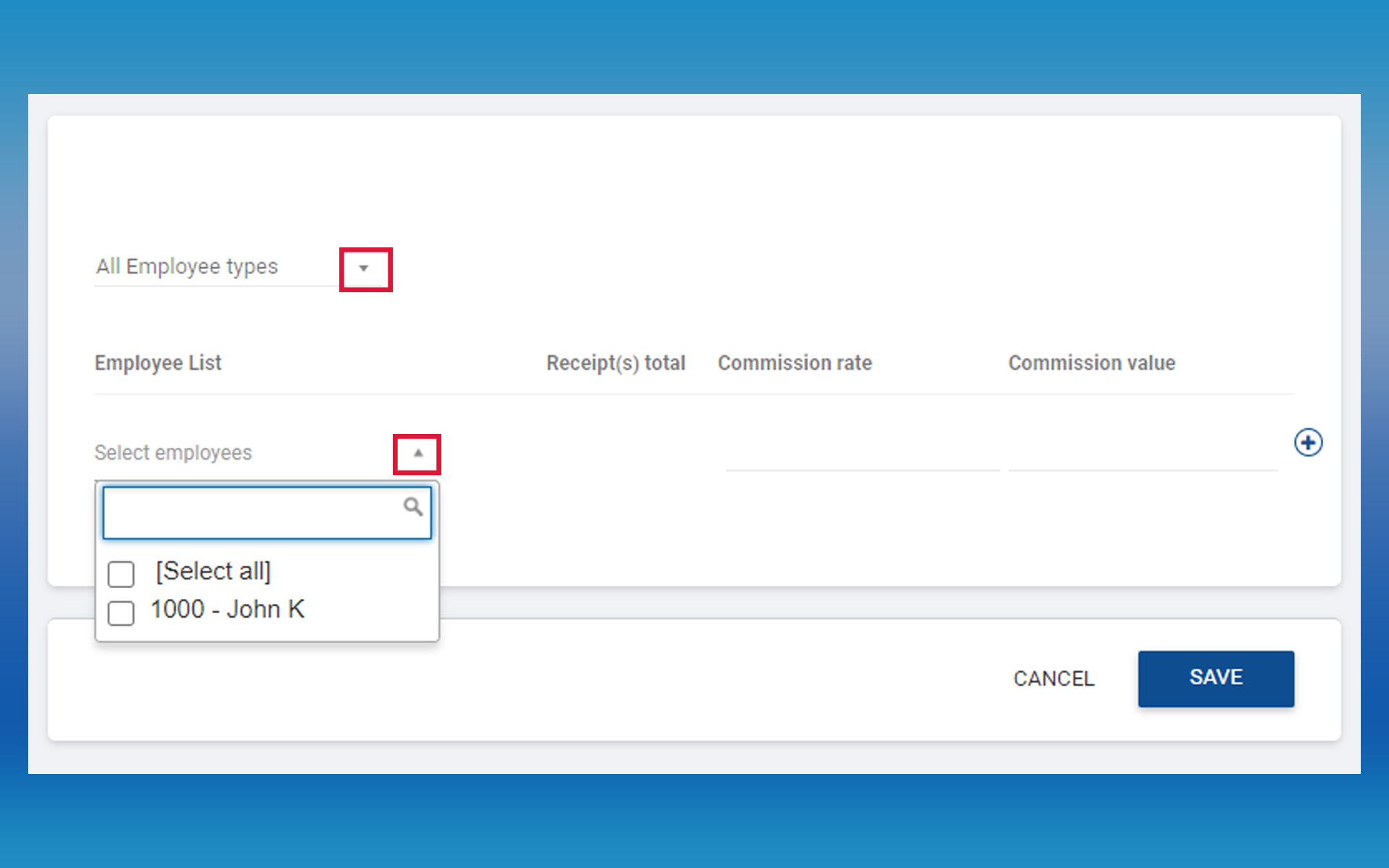
4. Select the employee(s)


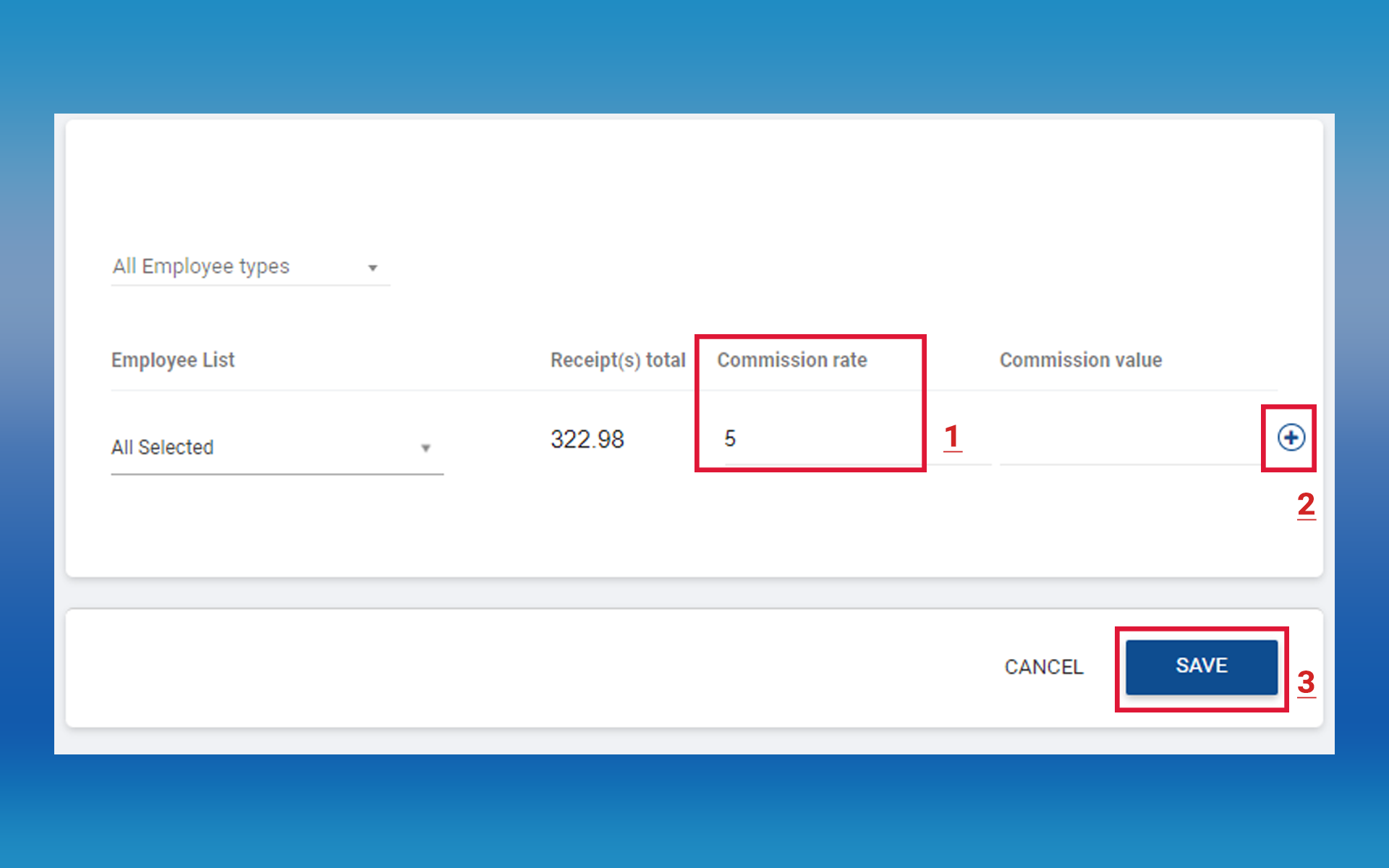
5. Enter the “commission rate” → Click “add” (+) → Click “Save”


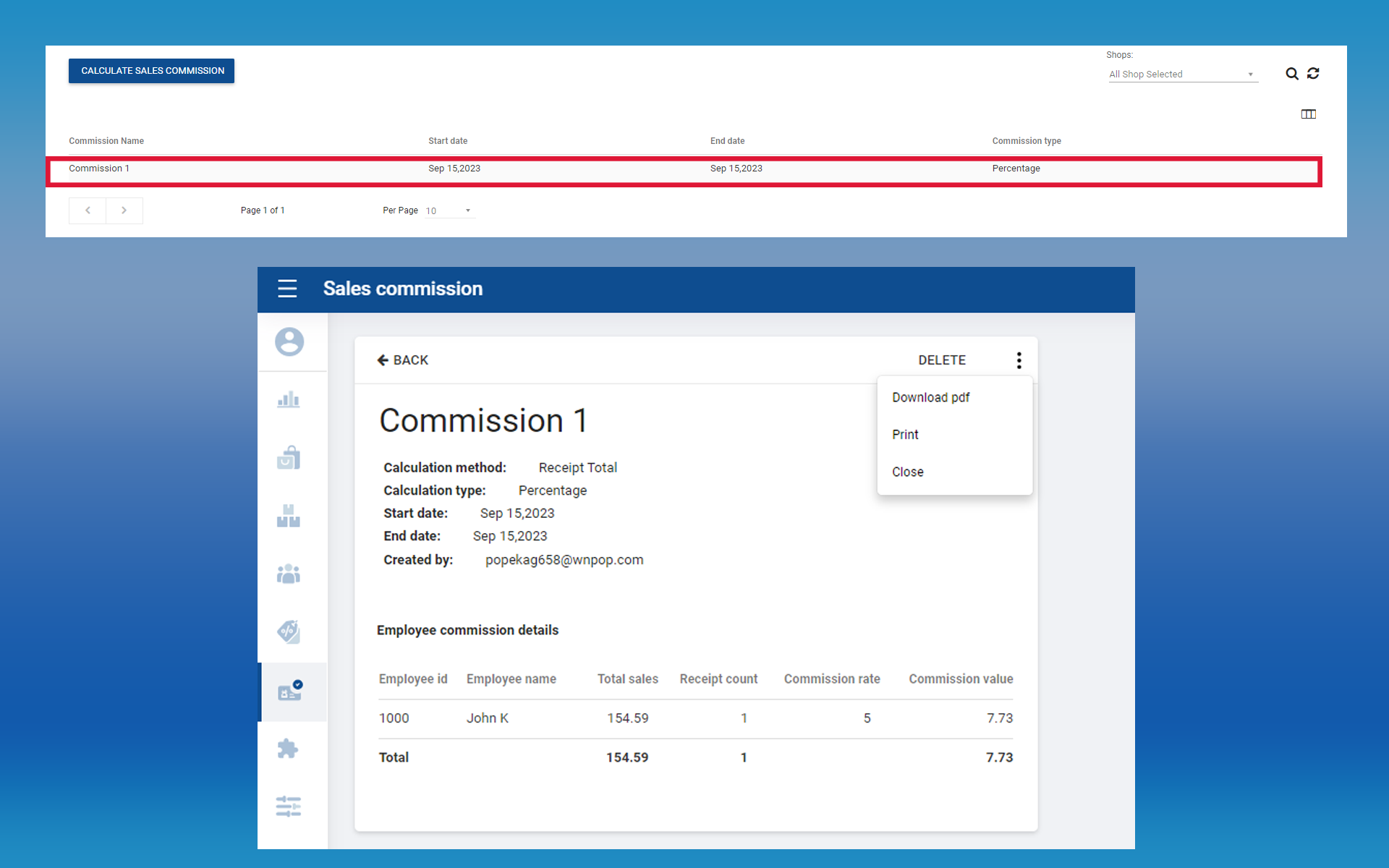
6. Once calculated, get a printout or download the PDF via the three-dot button


Was this helpful?

1 Yes  No
Related Articles
  • How to Modify Decimal and Comma Separators
  • How to Add Tips for Card Payments in SalesPlay POS
  • How to Add Tips to Receipts in SalesPlay POS
  • How to Do Fully & Partial Credit Settlement
  • How to Reserve Tables or Rooms & Assign Staff
  • How to Exchange Products and Use Credit Notes

No luck finding what you need? Contact Us

Popular Articles
  • Issues Caused by Damaged Network Cables
  • Dynamic QR Code Payment
  • QR Ordering System Guide for SalesPlay POS
  • How to Activate Order Notification Sound on SalesPlay POS
  • How to Setup KOT Printers in SalesPlay POS
KB Category
  • Affiliate Program
  • Customer Orders
  • Customers
  • Distributor Referral
  • Getting Started
  • Inventory
  • Loyalty
  • Payment
  • Product
  • Reports
  • Sales
  • Settings
  • Setup
  • User
  • Web POS

Still need help?

Contact Us

Our support team is
here for you!

Ask the Community

Connect and get answers
from fellow SalesPlay POS users.

Asset-3-3.webp
  • Privacy Policy
  • Terms & Conditions
  • Return & Refund Policy
Asset-3-3.webp
  • Privacy Policy
  • Terms & Conditions
  • Return & Refund Policy