• Point of Sale
  • Categories
    • Getting Started with SalesPlay
    • Web POS
    • Sales
    • Product
    • Inventory
    • User
    • Customers
    • Reports
    • Settings
  • Community
  • Point of Sale
  • Categories
    • Getting Started with SalesPlay
    • Web POS
    • Sales
    • Product
    • Inventory
    • User
    • Customers
    • Reports
    • Settings
  • Community
Home/Knowledge Base/Customers/How to Add Customer to the Receipt

How to Add Customer to the Receipt

February 2, 2026

SalesPlay makes it easy to add customers directly without navigating to the “Customer Profile” page. Follow these steps:

  1. Open the POS App and go to the Main Menu.
  2. Select New Sale.
  3. Click the Customer icon located in the upper-right corner.
  4. Search for the relevant customer using the search bar.
  5. Click the ( + ) icon next to the customer’s name to add them directly.
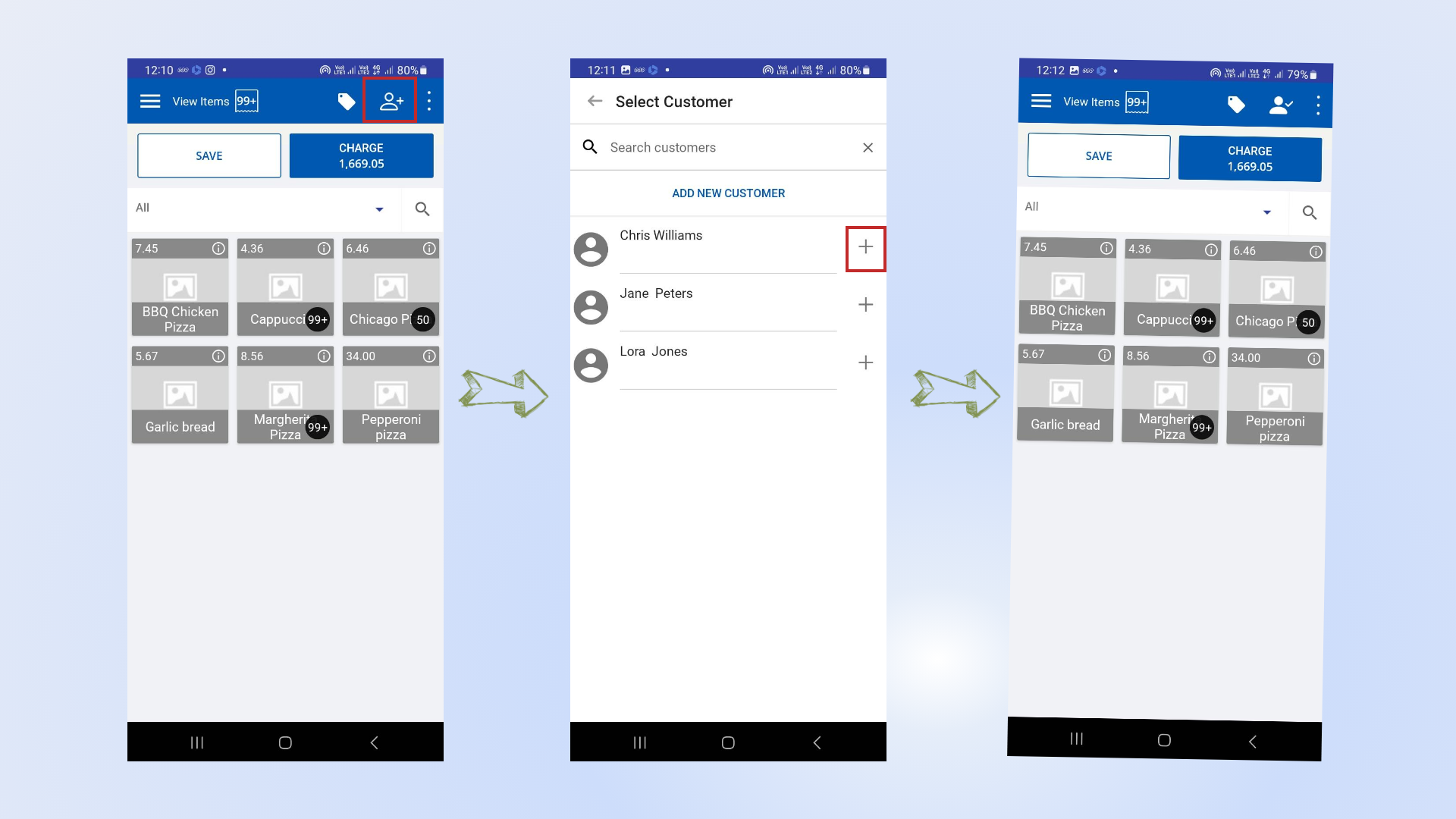
 

Add Customer to the Receipt
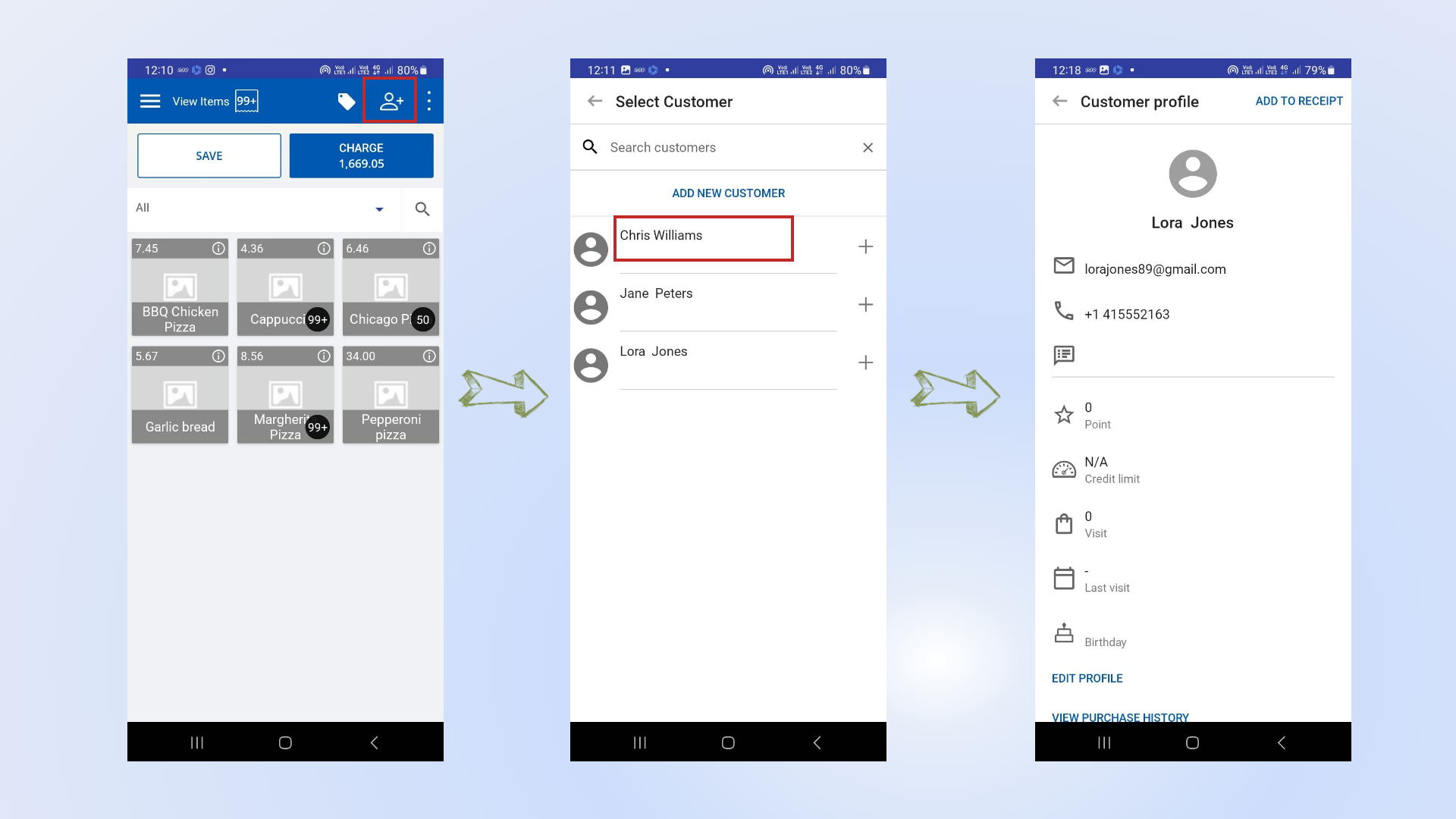
 

To view a customer’s profile:

  • Simply click on the customer’s name in the POS interface.

Was this helpful?

Yes  No
Related Articles
  • How to Create Customers
  • Managing Credit Limits with Debtor Management (Credit Invoice)
  • How to Print QR Codes for Customers
  • How to Check Customer Profiles in the Back Office
  • How to Add Profile Pictures for Existing Customers
  • How to Add Customer Profile Pictures

No luck finding what you need? Contact Us

Popular Articles
  • QR Ordering System Guide for SalesPlay POS
  • How to Activate Order Notification Sound on SalesPlay POS
  • How to Setup KOT Printers in SalesPlay POS
  • E-commerce Integration with SalesPlay POS ( WooCommerce & Shopify )
  • Number of Pax Feature
KB Category
  • Affiliate Program
  • Customer Orders
  • Customers
  • Distributor Referral
  • Getting Started
  • Inventory
  • Loyalty
  • Payment
  • Product
  • Reports
  • Sales
  • Settings
  • Setup
  • User
  • Web POS

Still need help?

Contact Us

Our support team is
here for you!

Ask the Community

Connect and get answers
from fellow SalesPlay POS users.

Asset-3-3.webp
  • Privacy Policy
  • Terms & Conditions
  • Return & Refund Policy
Asset-3-3.webp
  • Privacy Policy
  • Terms & Conditions
  • Return & Refund Policy