• Point of Sale
  • Categories
    • Getting Started with SalesPlay
    • Web POS
    • Sales
    • Product
    • Inventory
    • User
    • Customers
    • Reports
    • Settings
  • Community
  • Point of Sale
  • Categories
    • Getting Started with SalesPlay
    • Web POS
    • Sales
    • Product
    • Inventory
    • User
    • Customers
    • Reports
    • Settings
  • Community
Home/Knowledge Base/User/How to Setup Printers

How to Setup Printers

February 3, 2026

  • SalesPlay supports a wide range of printer brands, including popular models like EPSON, ZEBRA, Star Printer, Xprinter, SUNMI, Blue Bamboo, BIXOLON, SCANGLE, and more.
  • If you’re using a different thermal printer model or brand, please select the “OTHER MODEL” option during the setup process. Supported connection types include Wi-Fi, Network, USB, and Bluetooth.


Setting Up the Printer in POS App

  1. Open the POS App.
  2. Go to the Main Menu.
  3. Select Settings.
  4. Tap Printers.
  5. Click the Add (+) button to add a new printer.
  6. Enter a printer name.
  7. Choose the printer model from the list (If your brand is not listed, select Other Model).
  8. Select the connection mode (USB, Bluetooth, Wi-Fi, or Network).
  9. Choose the paper size.
  10. Enter the printer IP address (for Wi-Fi and Network connections) or select the USB path.
  11. Tick the option to print receipts and bills.
  12. Click Save.

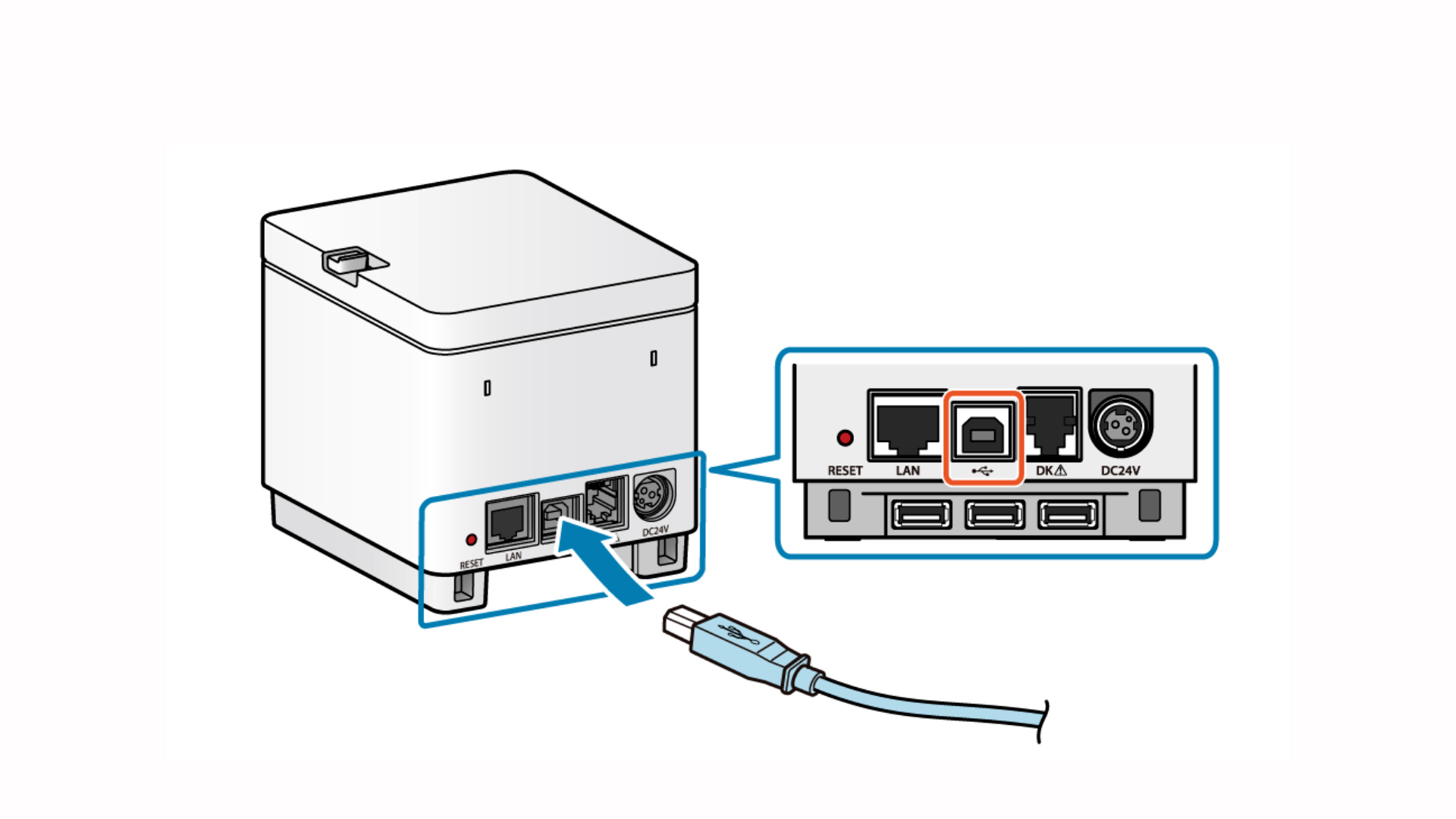
Connect printer to the USB Cable
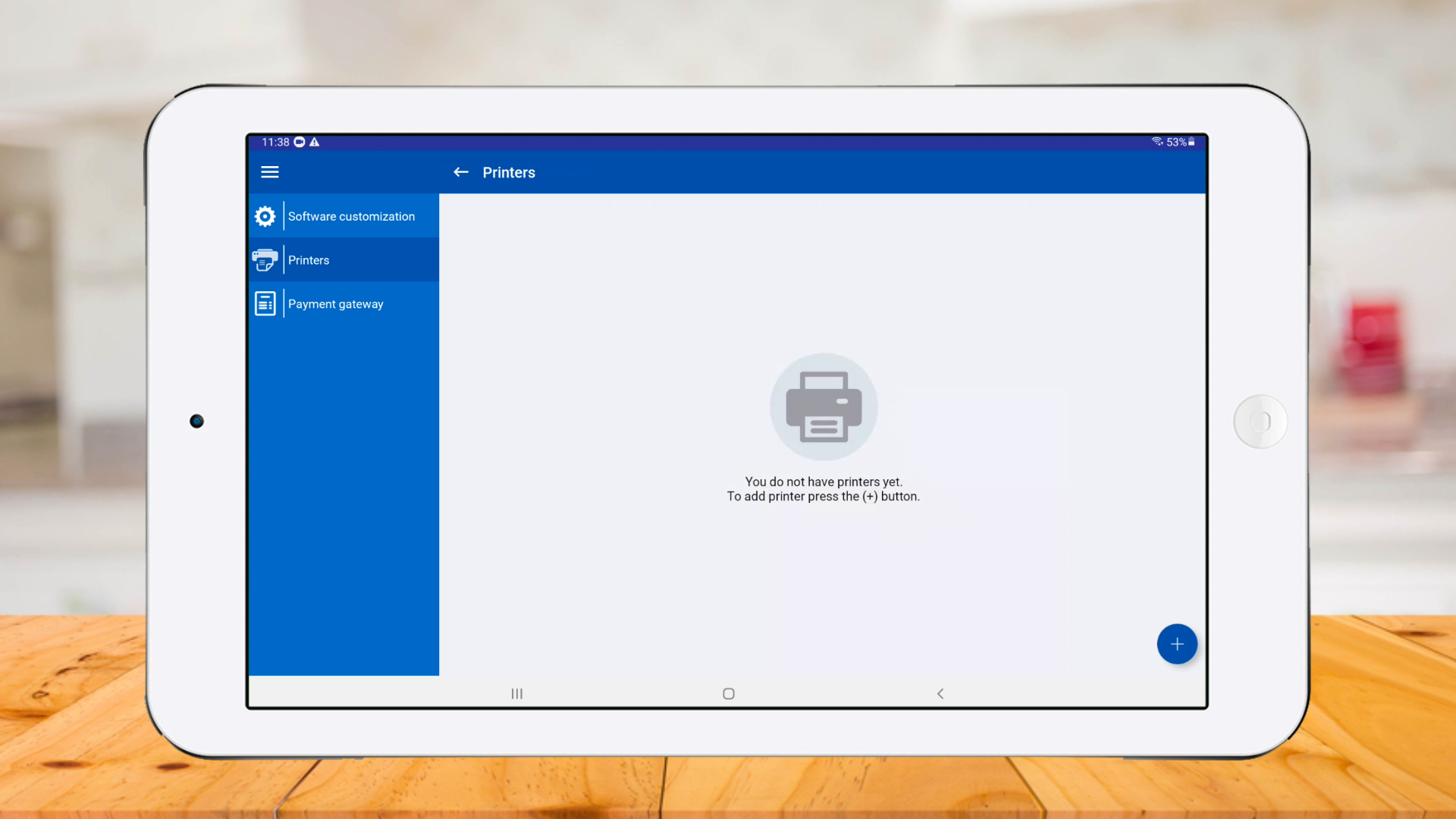
Go to SalesPlay POS app > Settings > Printers and click ‘plus button‘

Select a ‘Printer model‘ and select ‘USB’ as ‘Connection mode‘
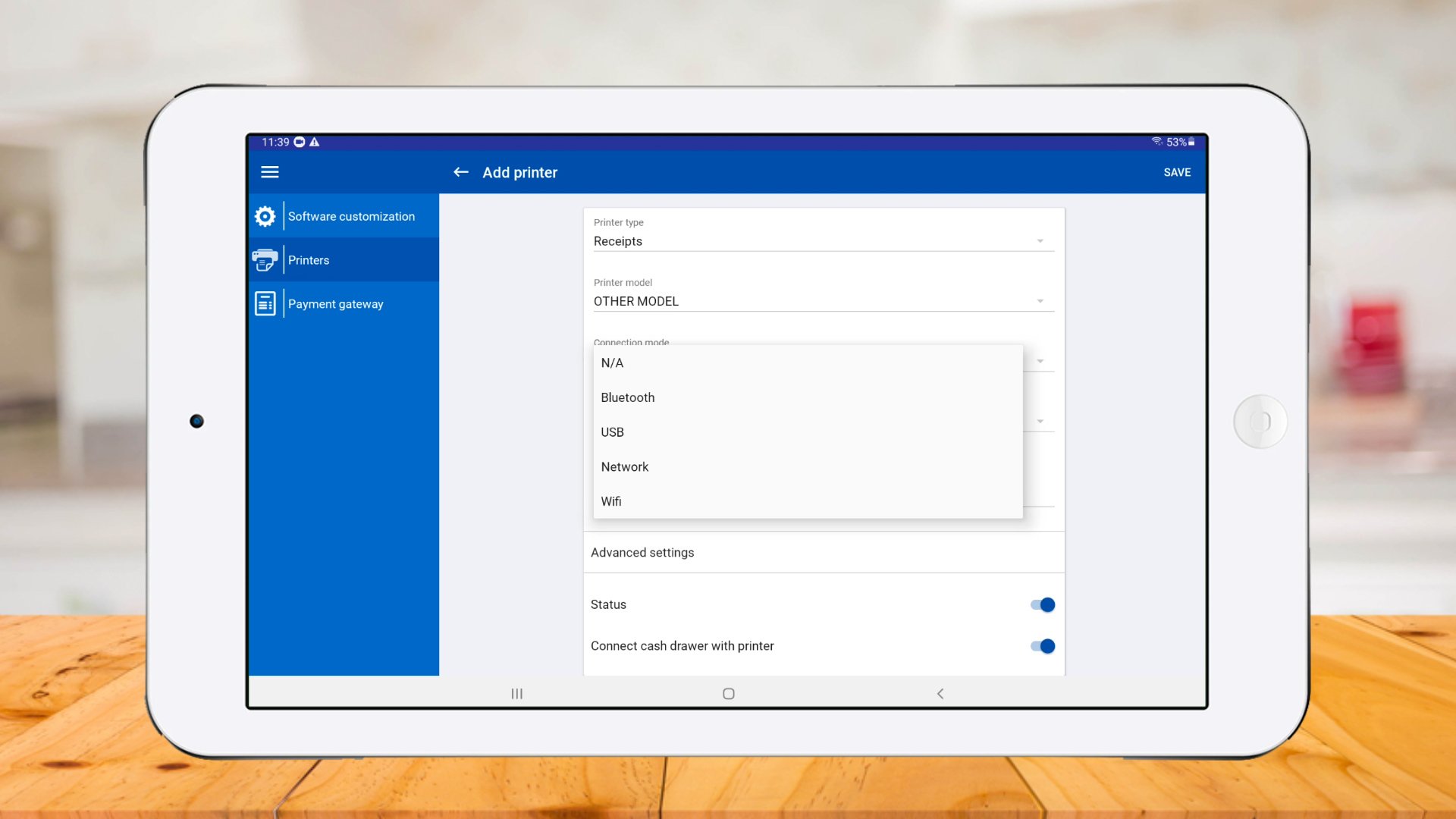
Select ‘Paper size‘ and click ‘Search‘

Printer connected successfully
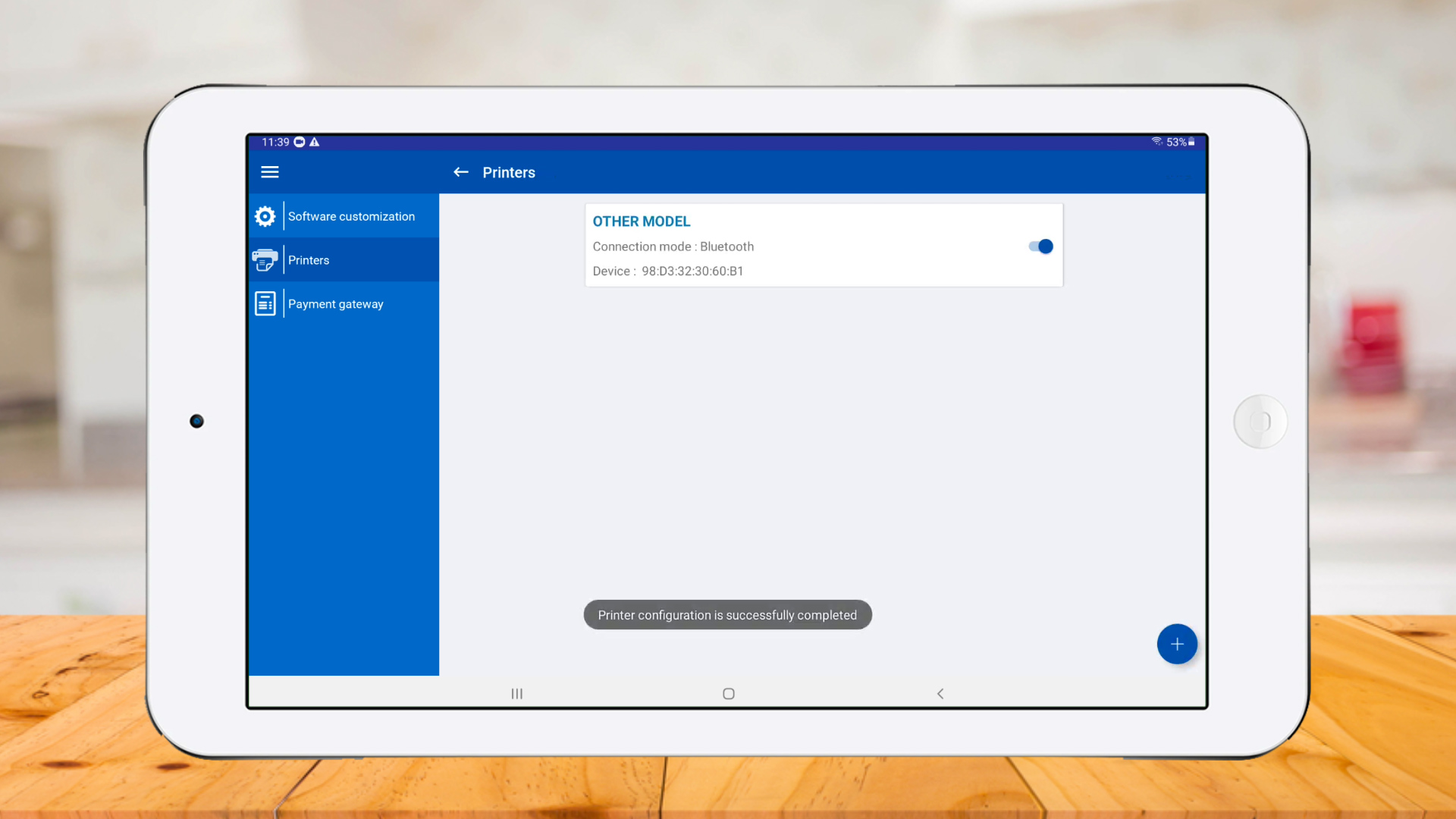
Click ‘Bluetooth‘
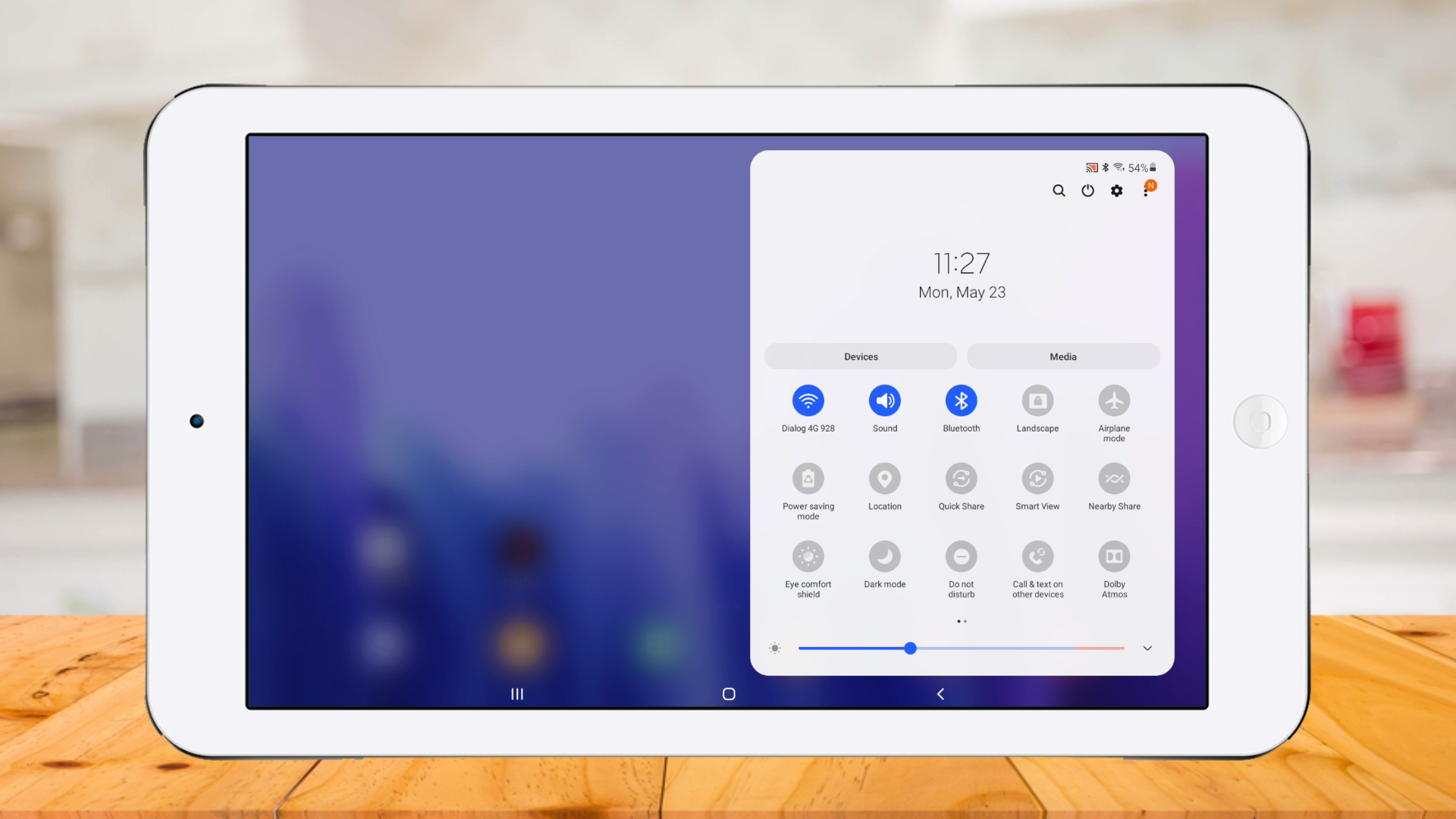
Click on Bluetooth printer.
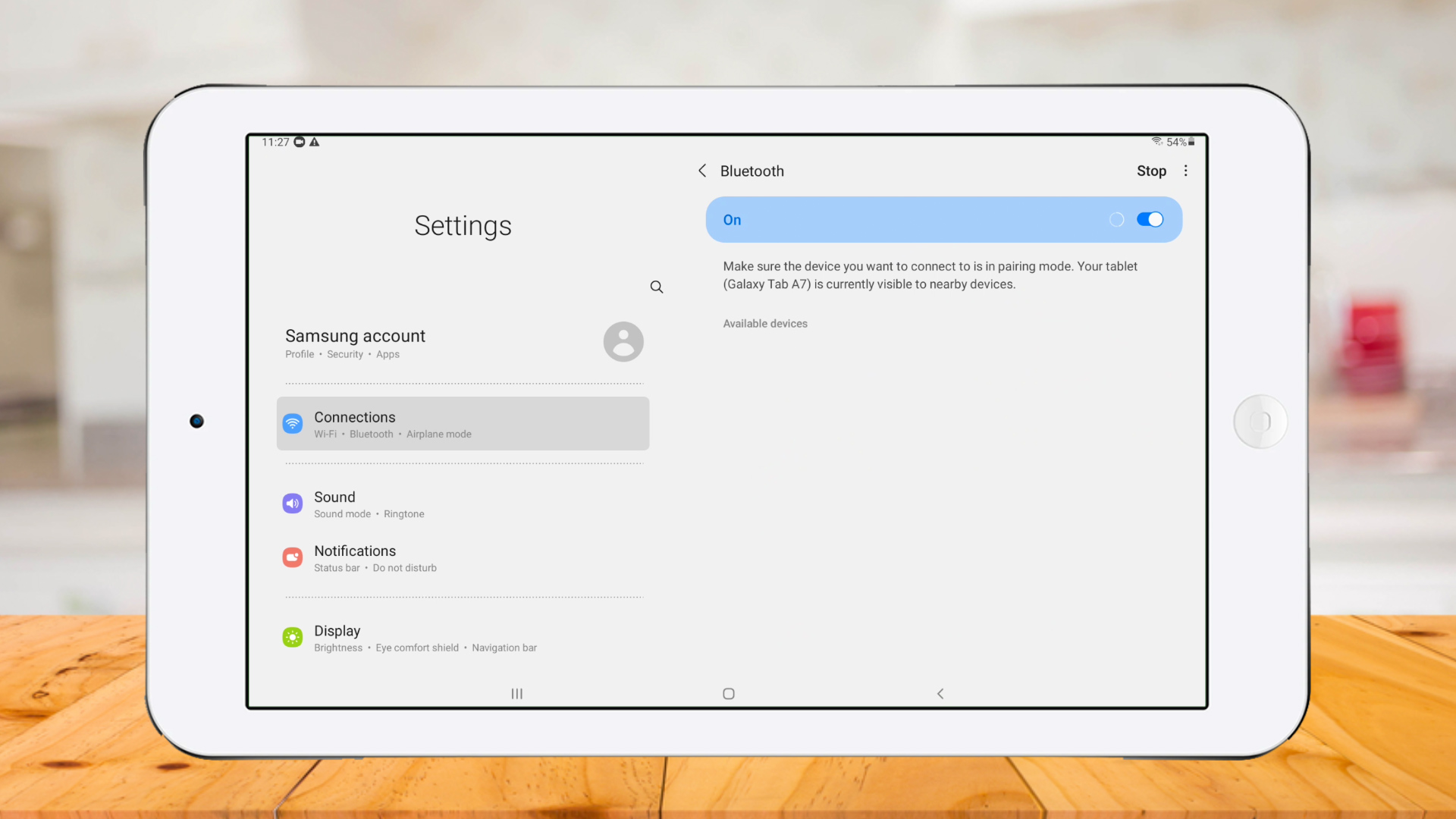
Add Pin number
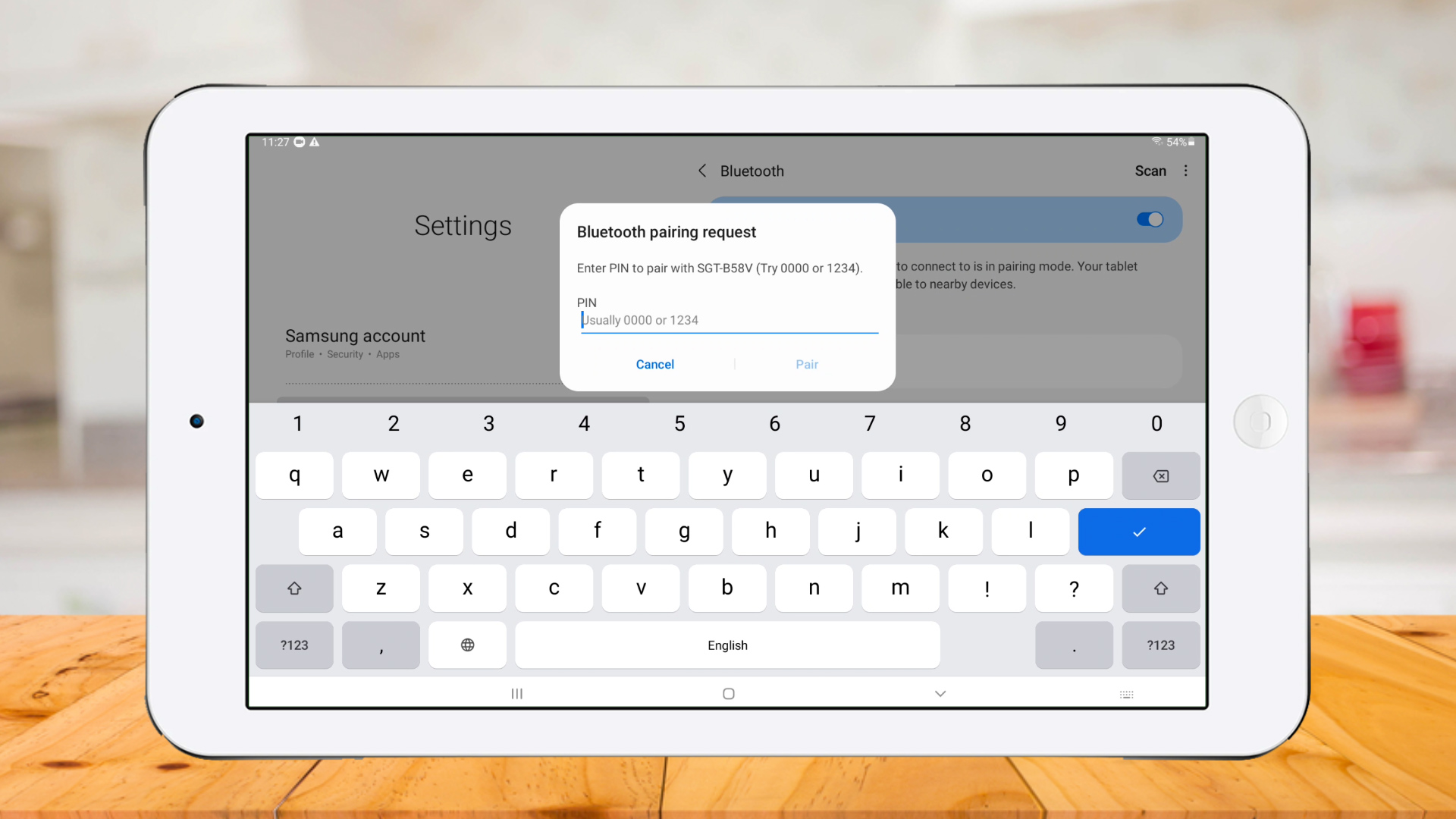
Printer paired successfully
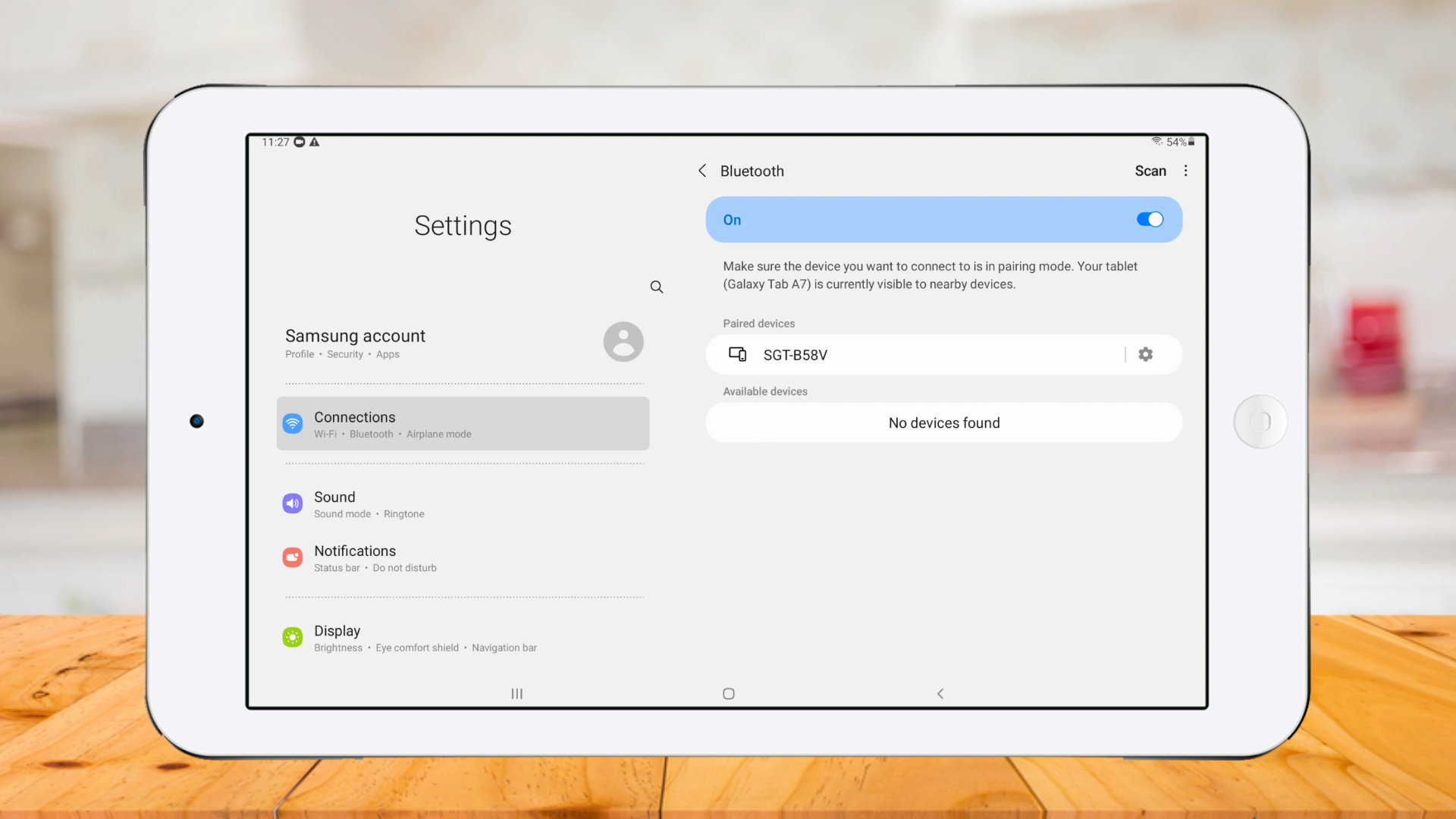
Go to POS App and click ‘Settings‘
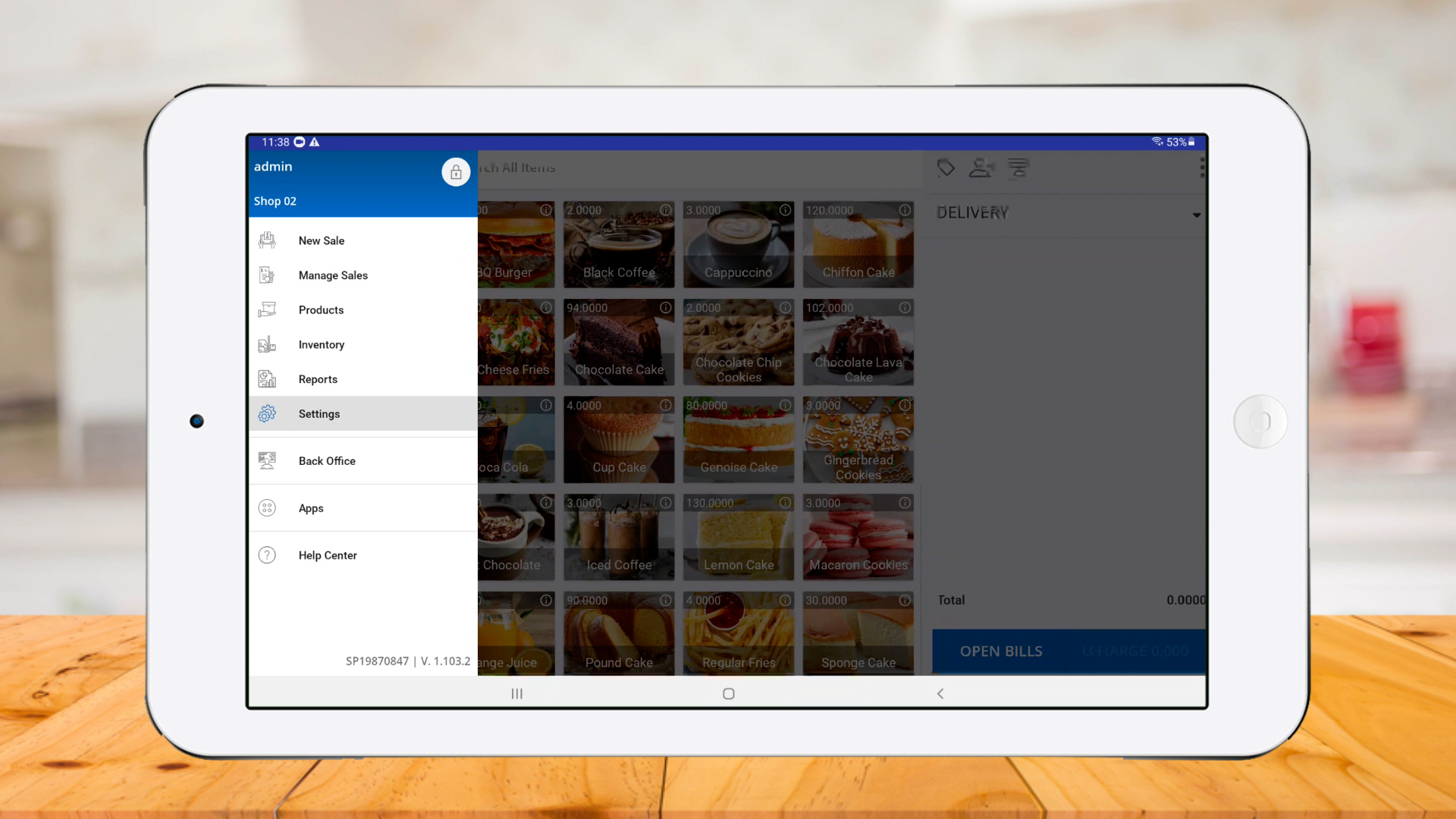
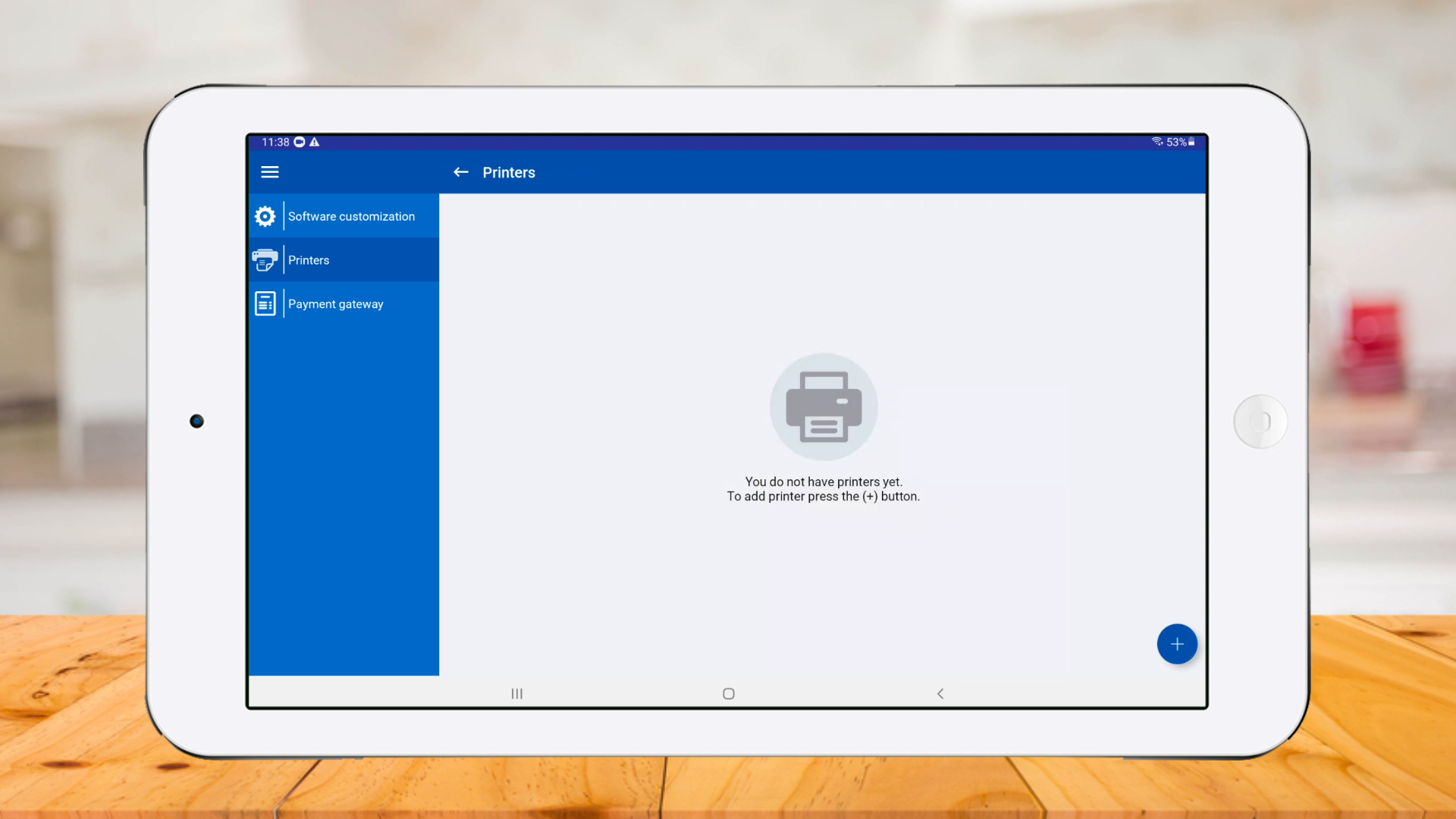
Select ‘Printers‘ and click ‘Plus button‘

Select a ‘Printer model‘ and select ‘Bluetooth‘ as ‘Connection mode‘

Select ‘Paper size‘ and click ‘Search‘

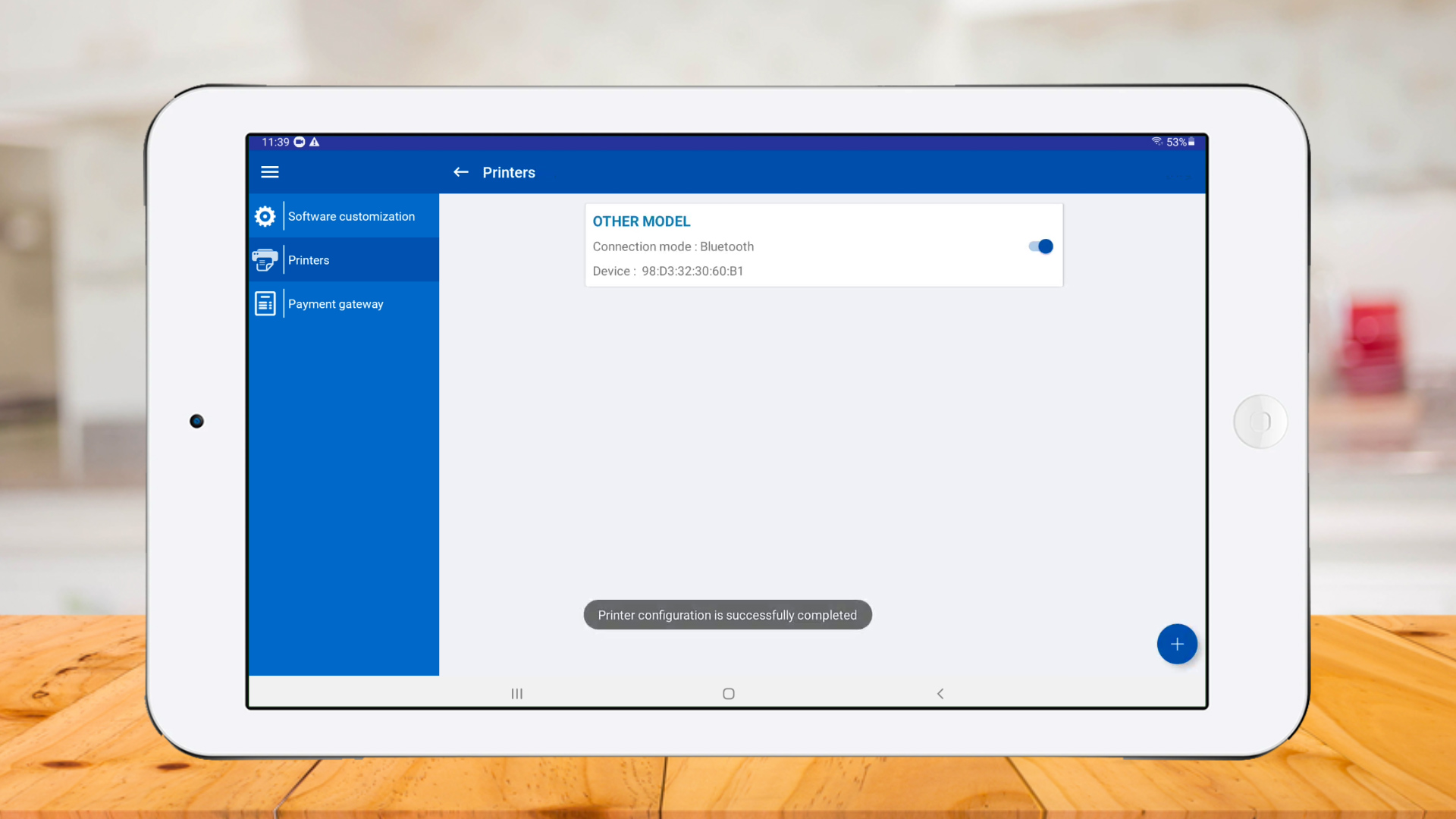
Printer connected successfully
Click ‘New Sale‘ , select products and click ‘CHARGE‘
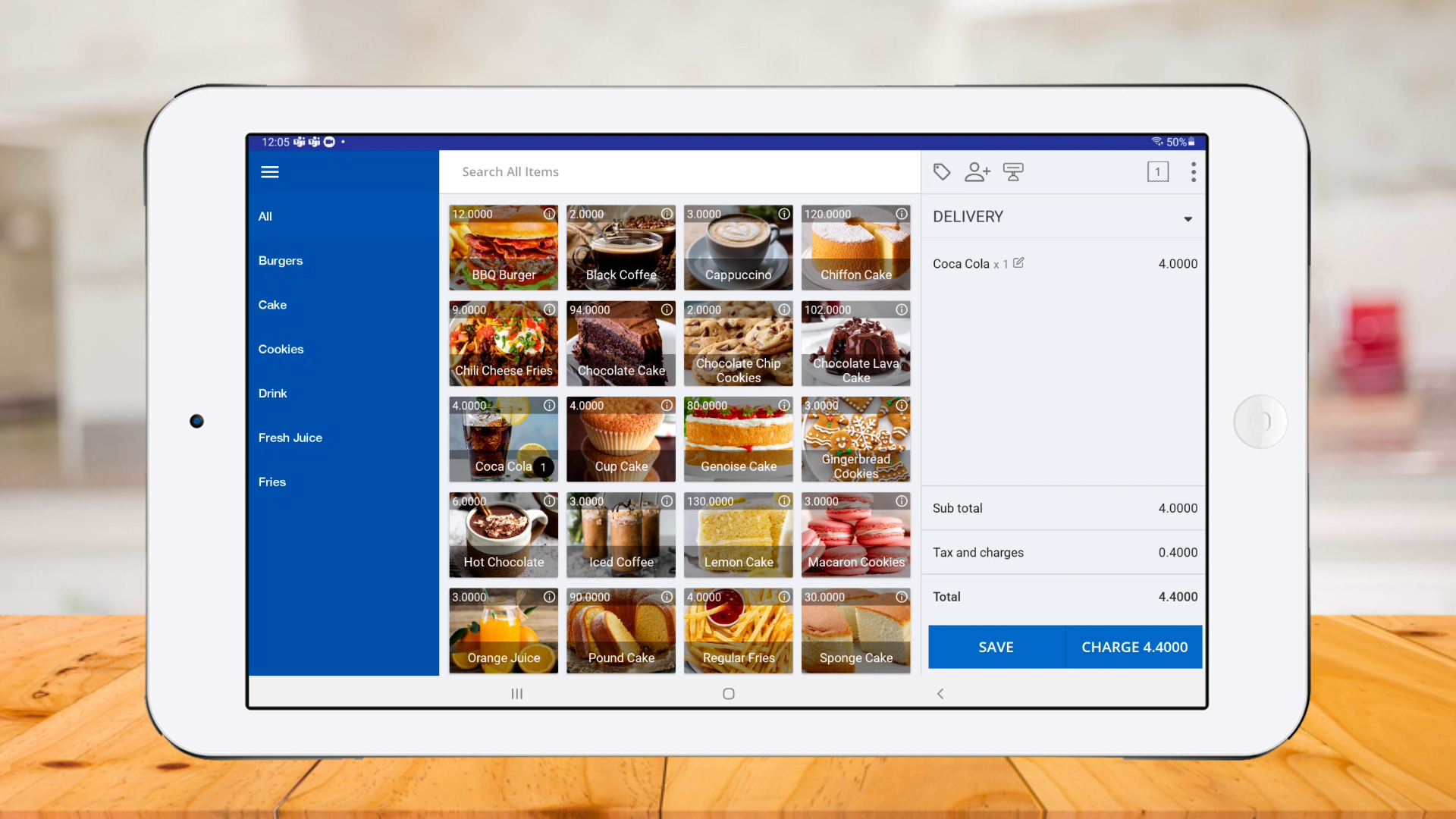
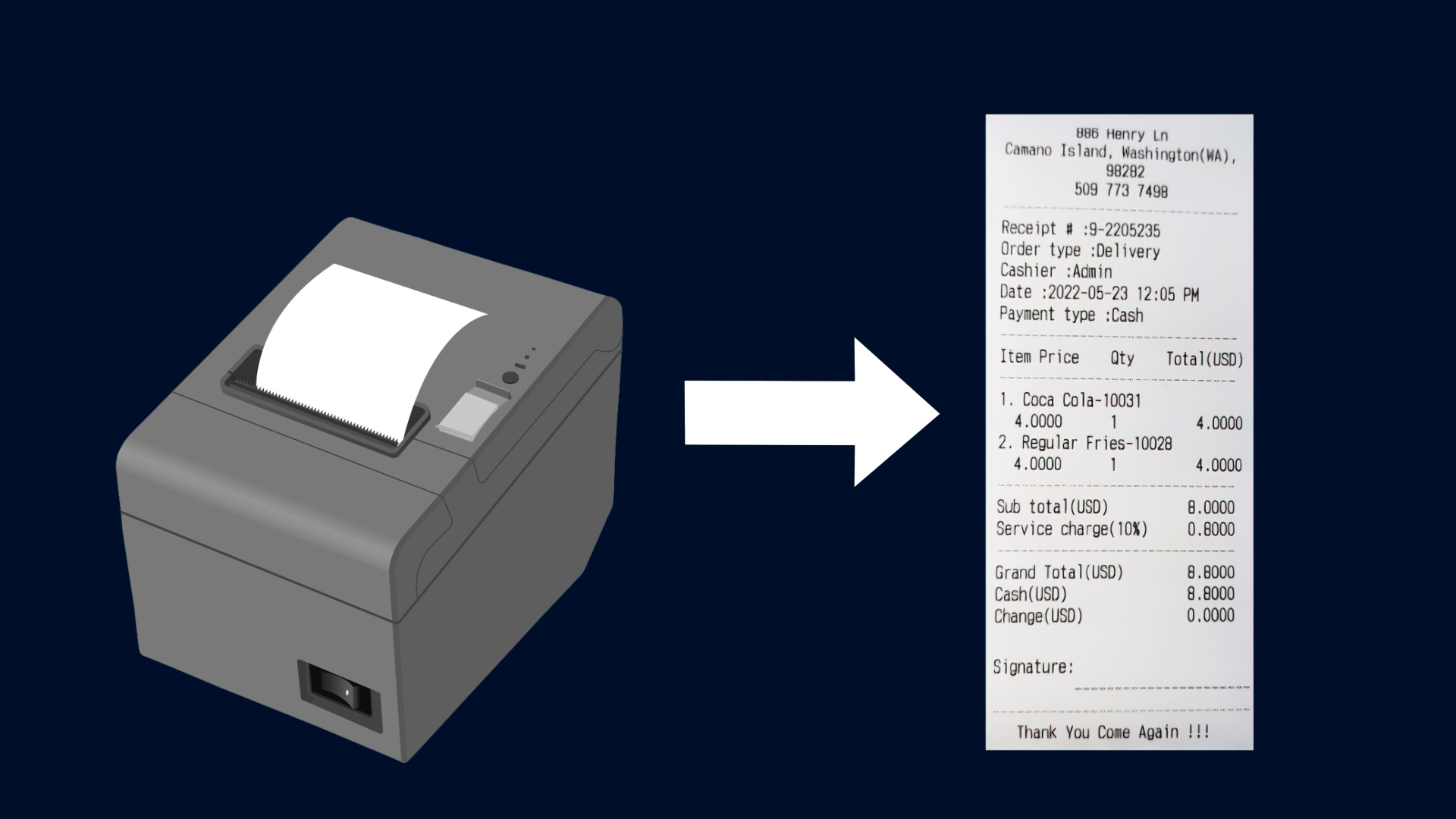
Receipt printed successfully
Was this helpful?

Yes  No
Related Articles
  • How to Restrict Duplicate Receipt Printing in SalesPlay
  • How to Create Other Staff
  • How to Use Shift Management
  • How to Manage Employee Back Office Access Rights
  • How to Use Time Clock
  • How to Manage Employee POS Access Rights

No luck finding what you need? Contact Us

Popular Articles
  • Complete Your SalesPlay POS System Registration by Installing the App
  • Issues Caused by Damaged Network Cables
  • Dynamic QR Code Payment
  • QR Ordering System Guide for SalesPlay POS
  • How to Activate Order Notification Sound on SalesPlay POS
KB Category
  • Affiliate Program
  • Customer Orders
  • Customers
  • Distributor Referral
  • Getting Started
  • Inventory
  • Loyalty
  • Payment
  • Product
  • Reports
  • Sales
  • Settings
  • Setup
  • User
  • Web POS

Still need help?

Contact Us

Our support team is
here for you!

Ask the Community

Connect and get answers
from fellow SalesPlay POS users.

Asset-3-3.webp
  • Privacy Policy
  • Terms & Conditions
  • Return & Refund Policy
Asset-3-3.webp
  • Privacy Policy
  • Terms & Conditions
  • Return & Refund Policy