• Point of Sale
  • Categories
    • Getting Started with SalesPlay
    • Web POS
    • Sales
    • Product
    • Inventory
    • User
    • Customers
    • Reports
    • Settings
  • Community
  • Point of Sale
  • Categories
    • Getting Started with SalesPlay
    • Web POS
    • Sales
    • Product
    • Inventory
    • User
    • Customers
    • Reports
    • Settings
  • Community
Home/Knowledge Base/Inventory/How to Create Purchase Orders

How to Create Purchase Orders

February 2, 2026


1.Create Purchase Orders

  • Purchase orders (POs) are documents sent from the buyer, to a supplier with a request for products or services as an order. PO includes the PO Number, products codes and name, quantities and prices.
  • Under this facility, you have the option to email the Purchase Order to the supplier. Also you can download the PDF version and print the PO.

2. Create Purchase Orders
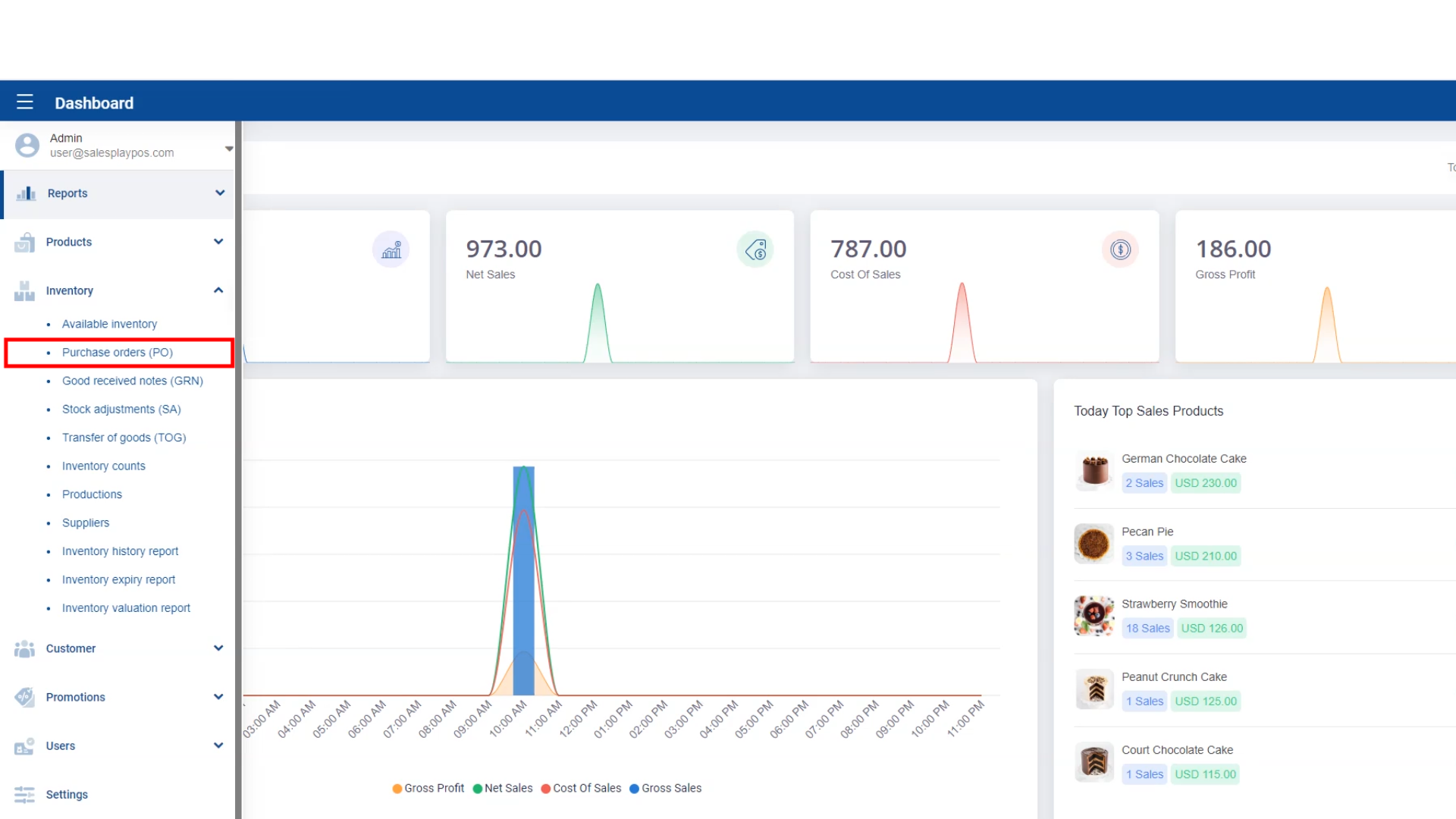
 

  1. Login to POS Back Office Webportal
  2. Select “Inventory” from main menu


3. Create Purchase Orders
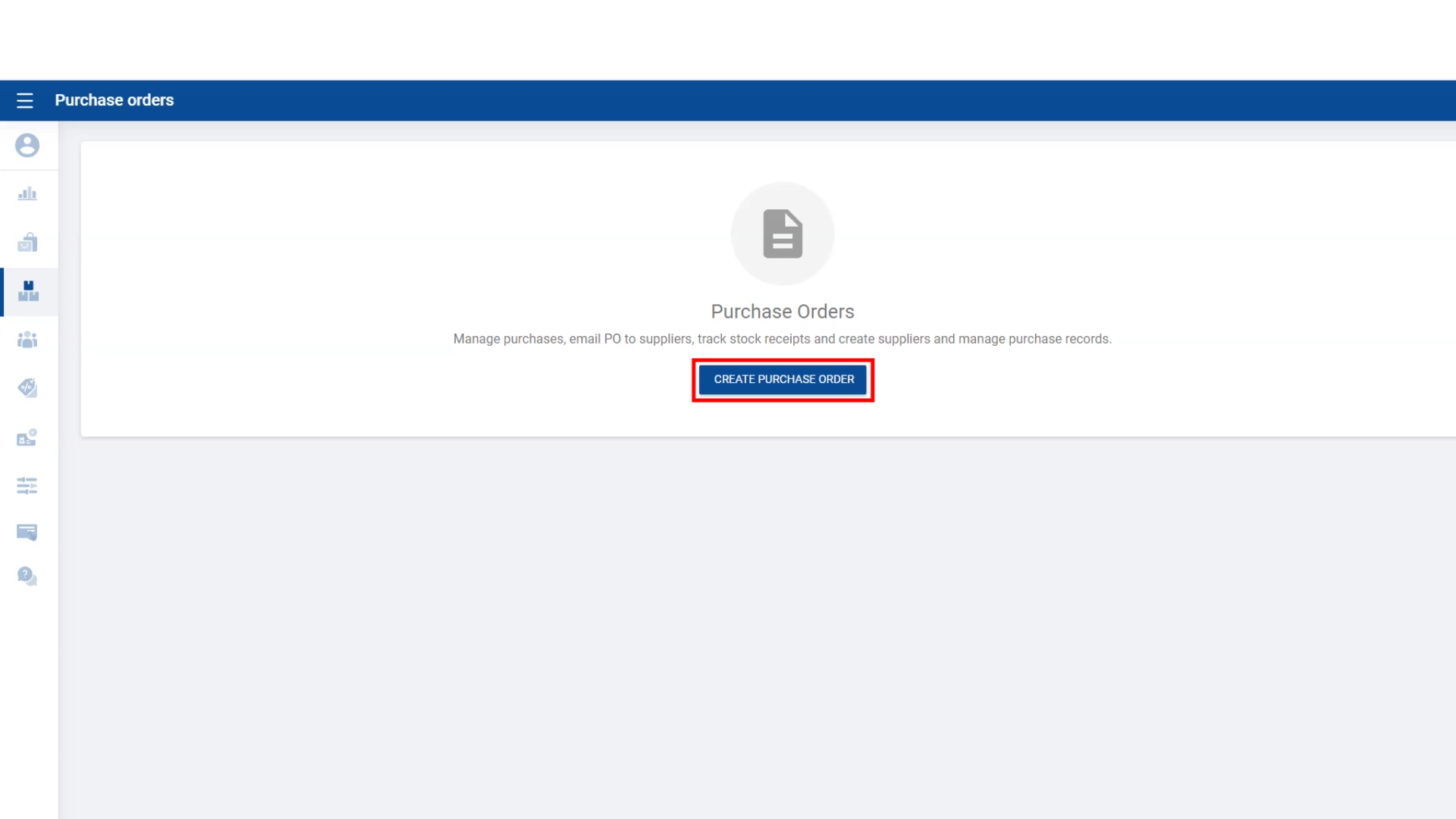
 

  1. Go to the “ Purchase Order PO”
  2. Click “ Create Purchase Order”

4. Create Purchase Orders
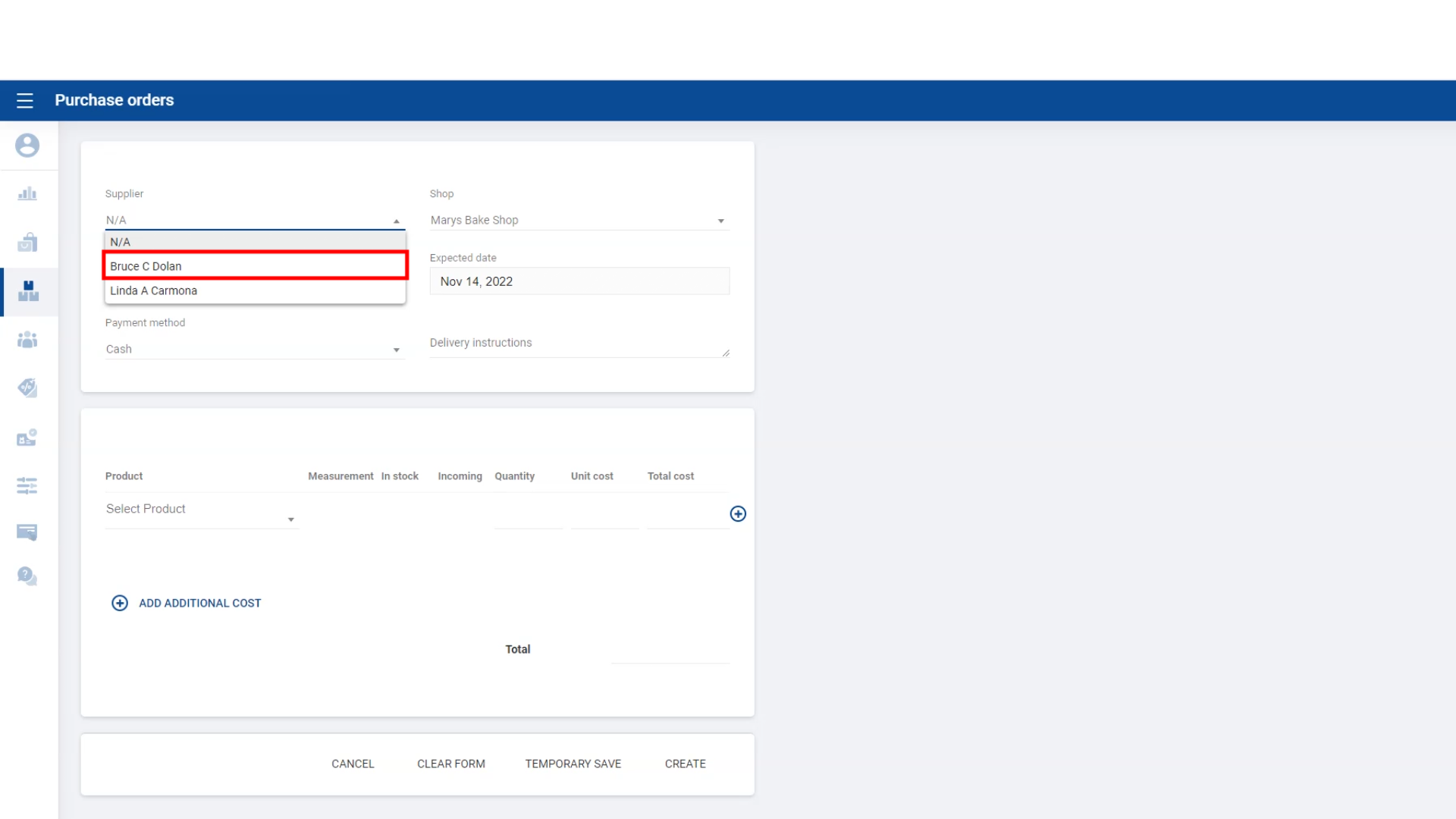
 

  1. Select the “Supplier” or create a supplier
  2. Enter relevant details
  3. Click “Create”

5. Create Purchase Orders
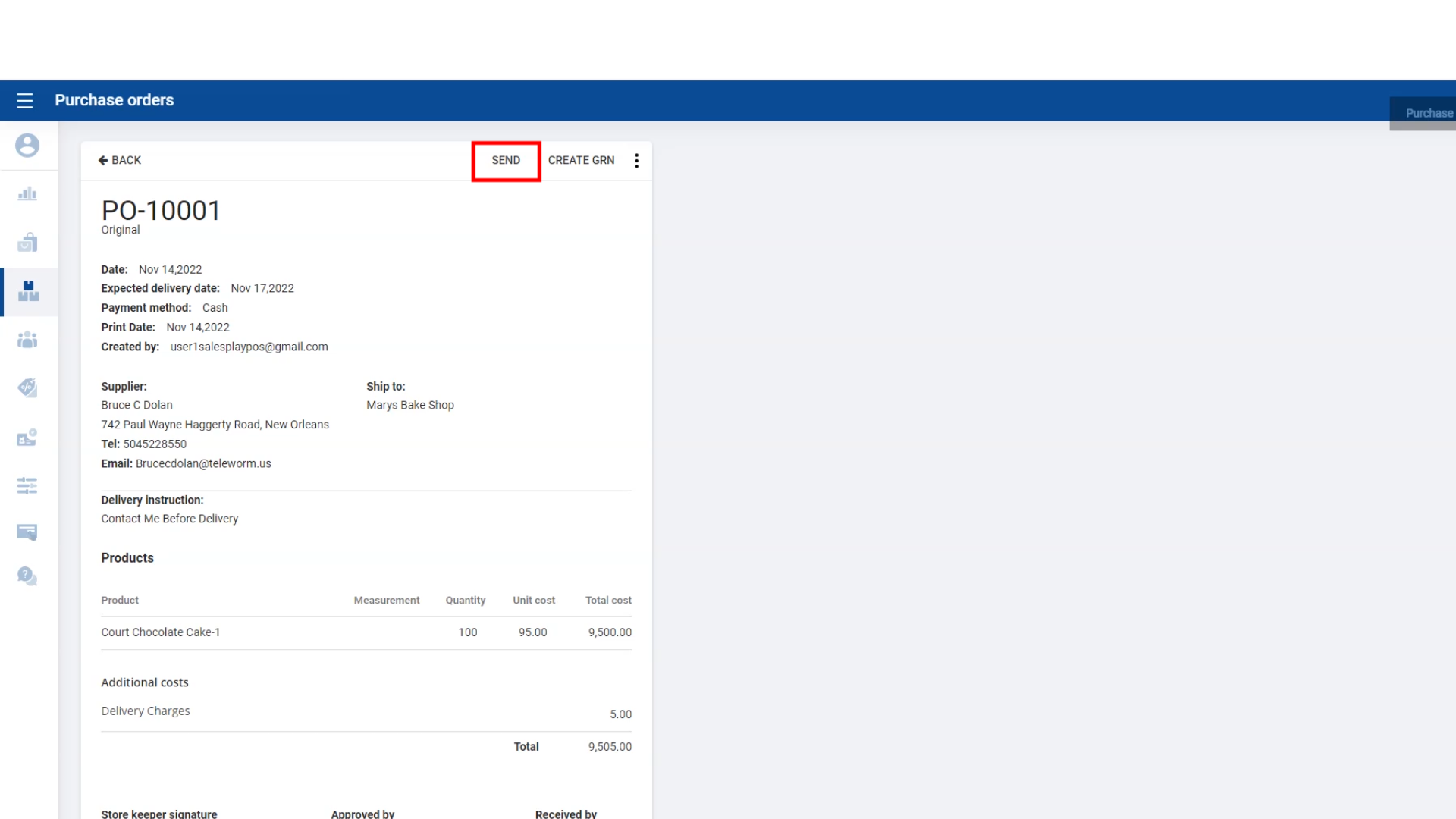
 

  • Once click CREATE, you will be redirected to another page, where you can Print, Download or send the PO via Email to the supplier.

Was this helpful?

Yes  No
Related Articles
  • How to Work with Productions in SalesPlay POS
  • How to Create Purchase Orders (PO) in SalesPlay POS
  • How to Create Suppliers in SalesPlay POS
  • How to Do Stock Adjustments in SalesPlay POS
  • How to Add a TOG Schedule Option
  • How to Do Transfer of Goods (TOG)

No luck finding what you need? Contact Us

Popular Articles
  • Issues Caused by Damaged Network Cables
  • Dynamic QR Code Payment
  • QR Ordering System Guide for SalesPlay POS
  • How to Activate Order Notification Sound on SalesPlay POS
  • How to Setup KOT Printers in SalesPlay POS
KB Category
  • Affiliate Program
  • Customer Orders
  • Customers
  • Distributor Referral
  • Getting Started
  • Inventory
  • Loyalty
  • Payment
  • Product
  • Reports
  • Sales
  • Settings
  • Setup
  • User
  • Web POS

Still need help?

Contact Us

Our support team is
here for you!

Ask the Community

Connect and get answers
from fellow SalesPlay POS users.

Asset-3-3.webp
  • Privacy Policy
  • Terms & Conditions
  • Return & Refund Policy
Asset-3-3.webp
  • Privacy Policy
  • Terms & Conditions
  • Return & Refund Policy