• Point of Sale
  • Categories
    • Getting Started with SalesPlay
    • Web POS
    • Sales
    • Product
    • Inventory
    • User
    • Customers
    • Reports
    • Settings
  • Community
  • Point of Sale
  • Categories
    • Getting Started with SalesPlay
    • Web POS
    • Sales
    • Product
    • Inventory
    • User
    • Customers
    • Reports
    • Settings
  • Community
Home/Knowledge Base/Settings/How to Create an Employee

How to Create an Employee

February 2, 2026 Updated on February 26, 2026

Special Note

  • When you set a Personal Identification Number (PIN) for your employees or at least for the Admin using the Back Office Webportal
  • you will see a padlock or a PIN icon within the Point of Sale (POS) app.


Create an Employee
 

  • POS system allows you to create different employees / users with different permissions and roles based on owner’s requirements to allow certain levels for certain employees.
  • This access levels allows you to create different users and different user roles with wide range of permissions.

EXAMPLE

      • User Role Cashier can only do the billing
      • User Role “Supervisor” can check some reports
      • User Role “Manager” can delete receipts 


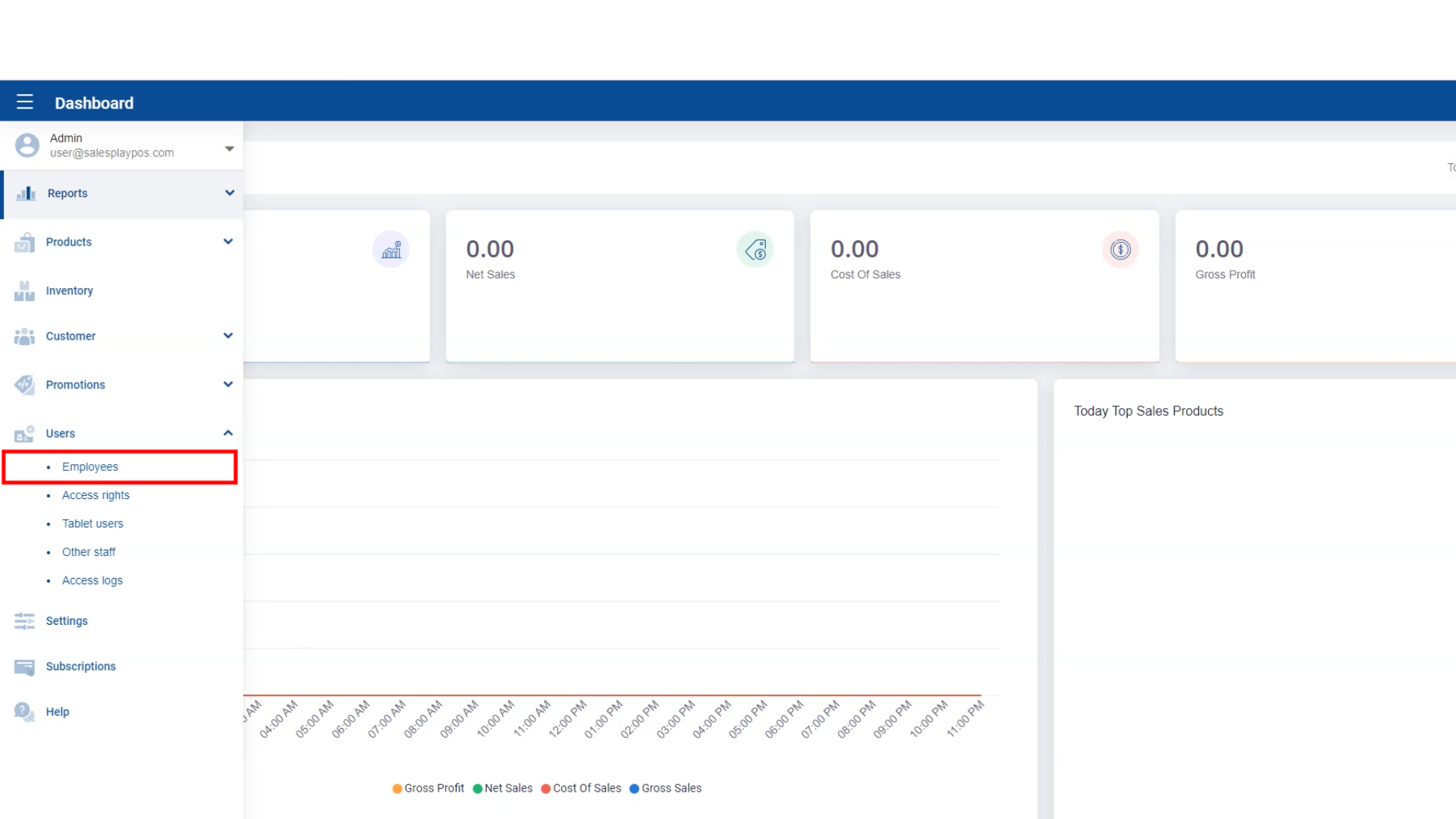
  • After logging into SalesPlay Back Office go to,
    • Users > Employees > Create employee

Admin Loggin

Enter Administrator PIN
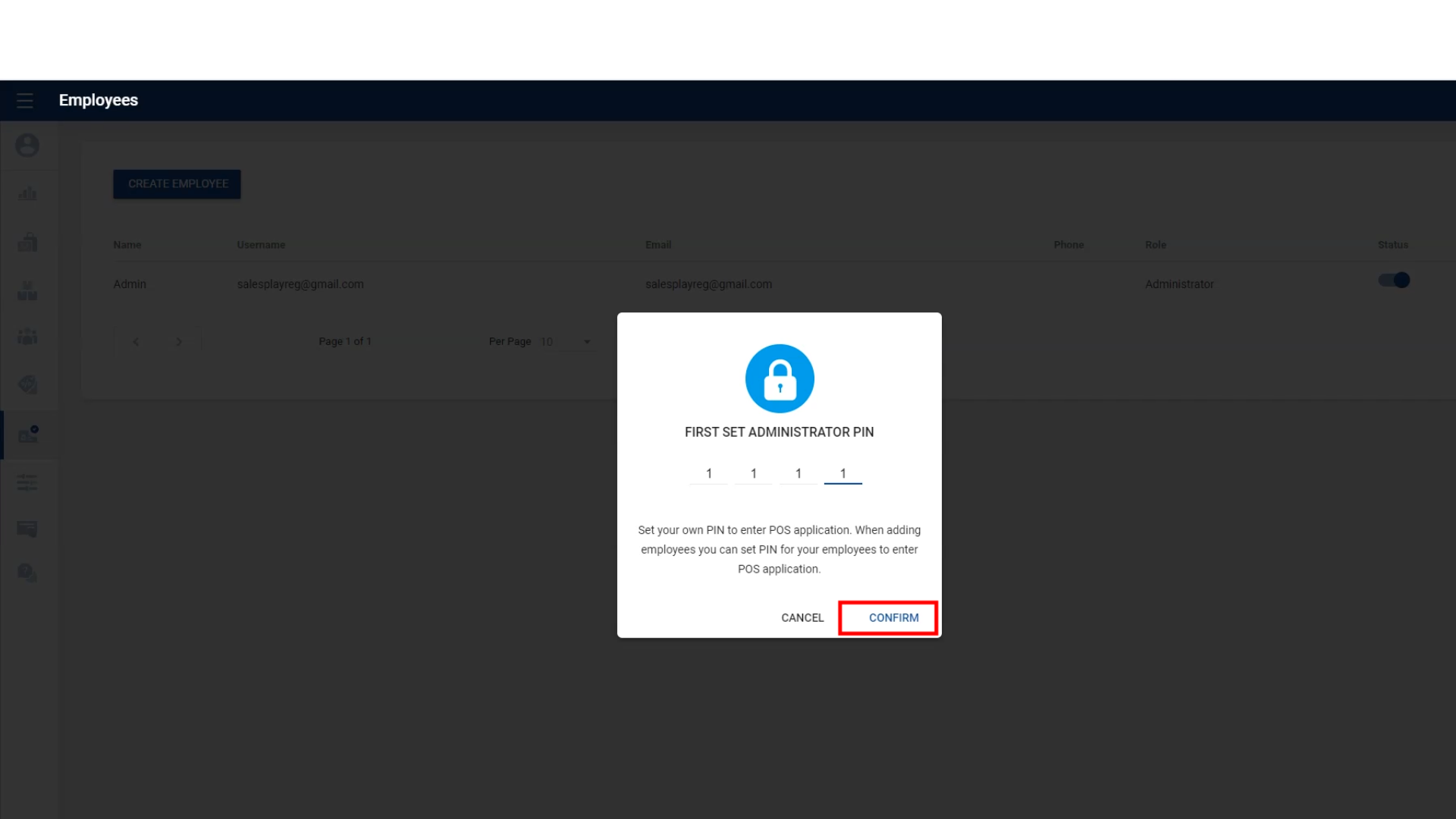
 

  • Before you create your first employee, you need to set your own pin as the administrator. Then you can set pin for your employees when you create the employee and let them enter it at the POS application to login.

Select the Category

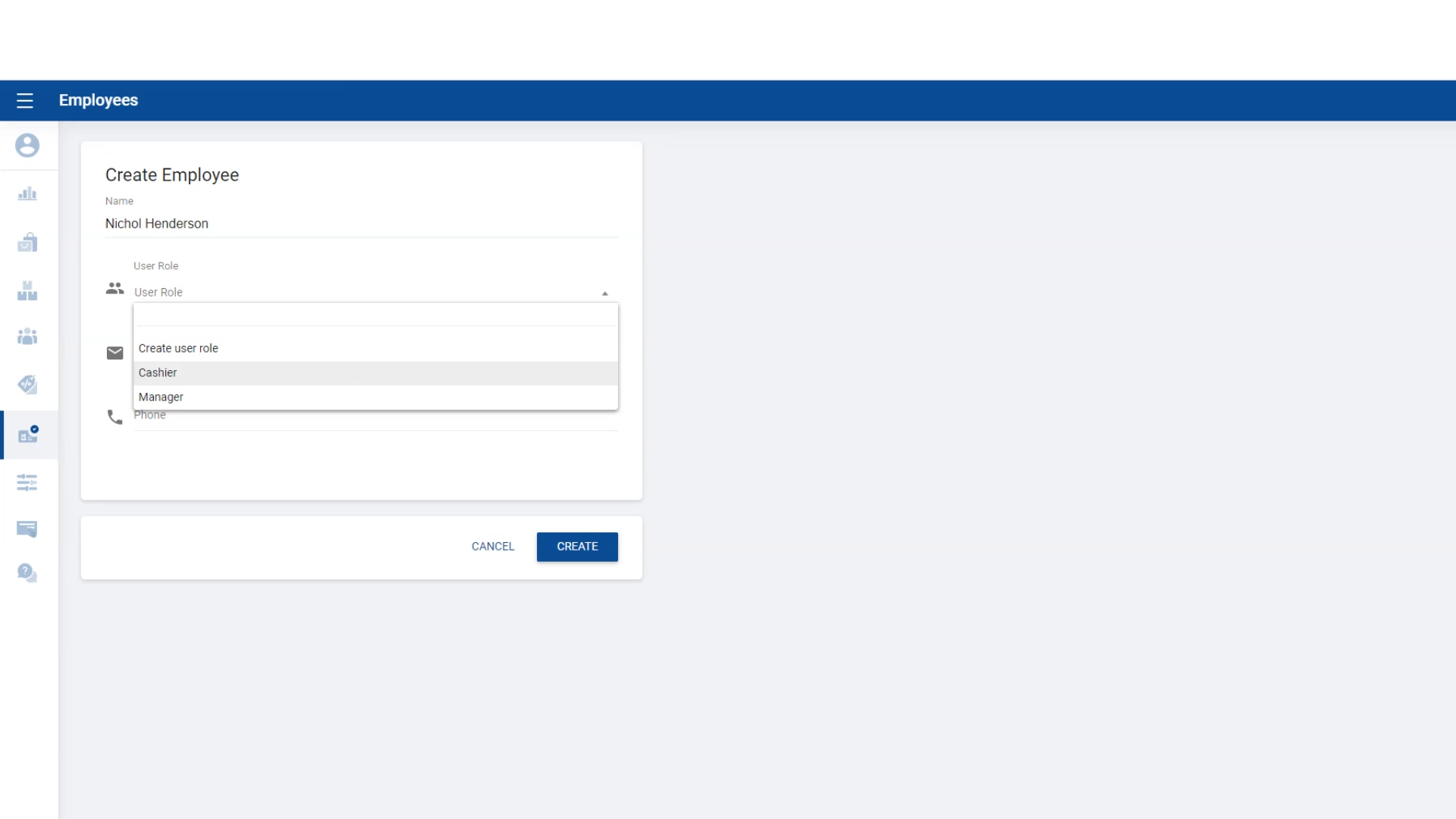
Select the Category of New Employee
 

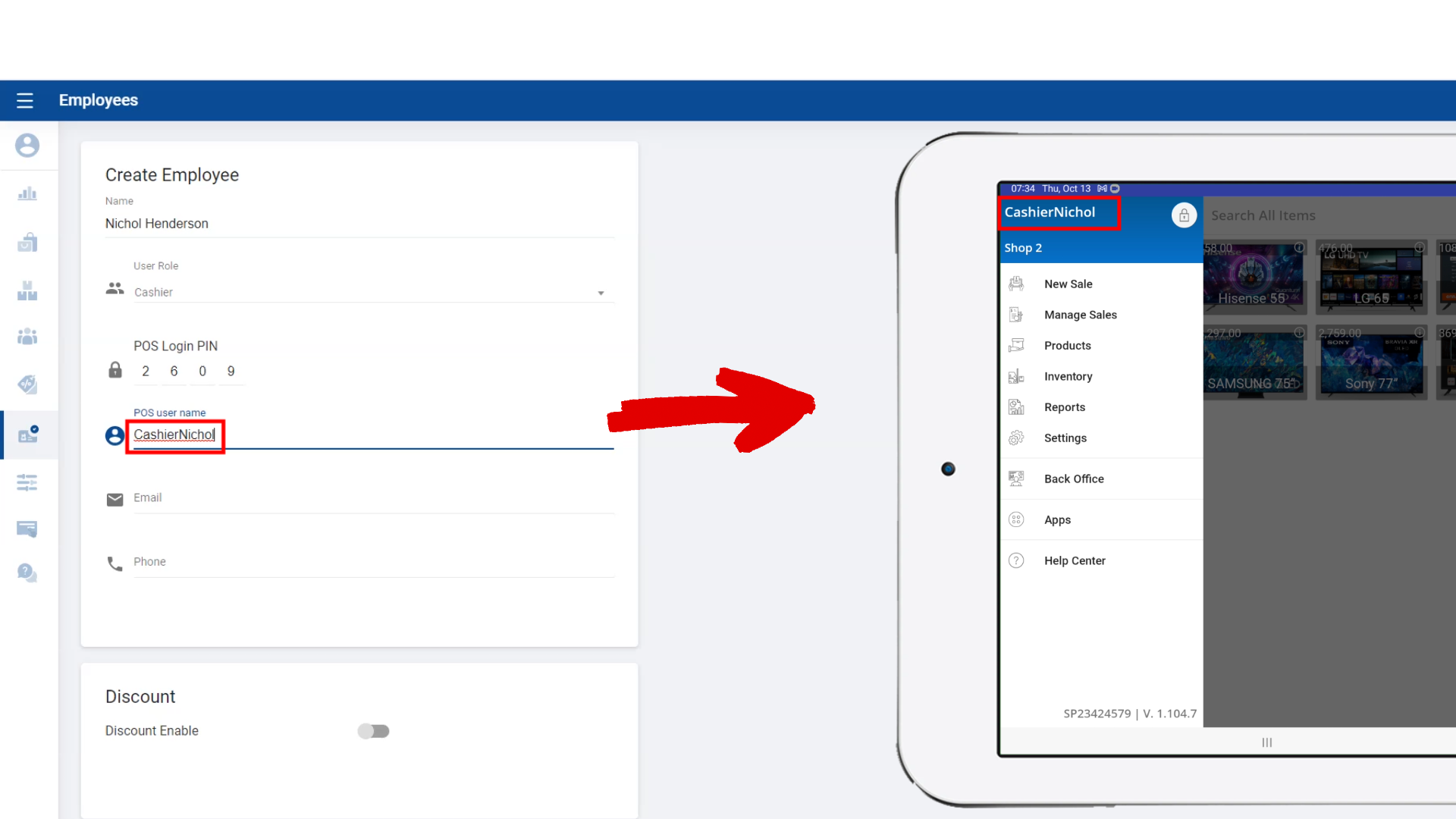
  • Enter the details of the emploee such as
    • name
    • user role(manager, cashier, etc)
    • POS login pin.


  • Enter the employee’s POS user name. As you can see in this image, POS user name will be visible on the main menu in POS app during the emplyee’s shift.

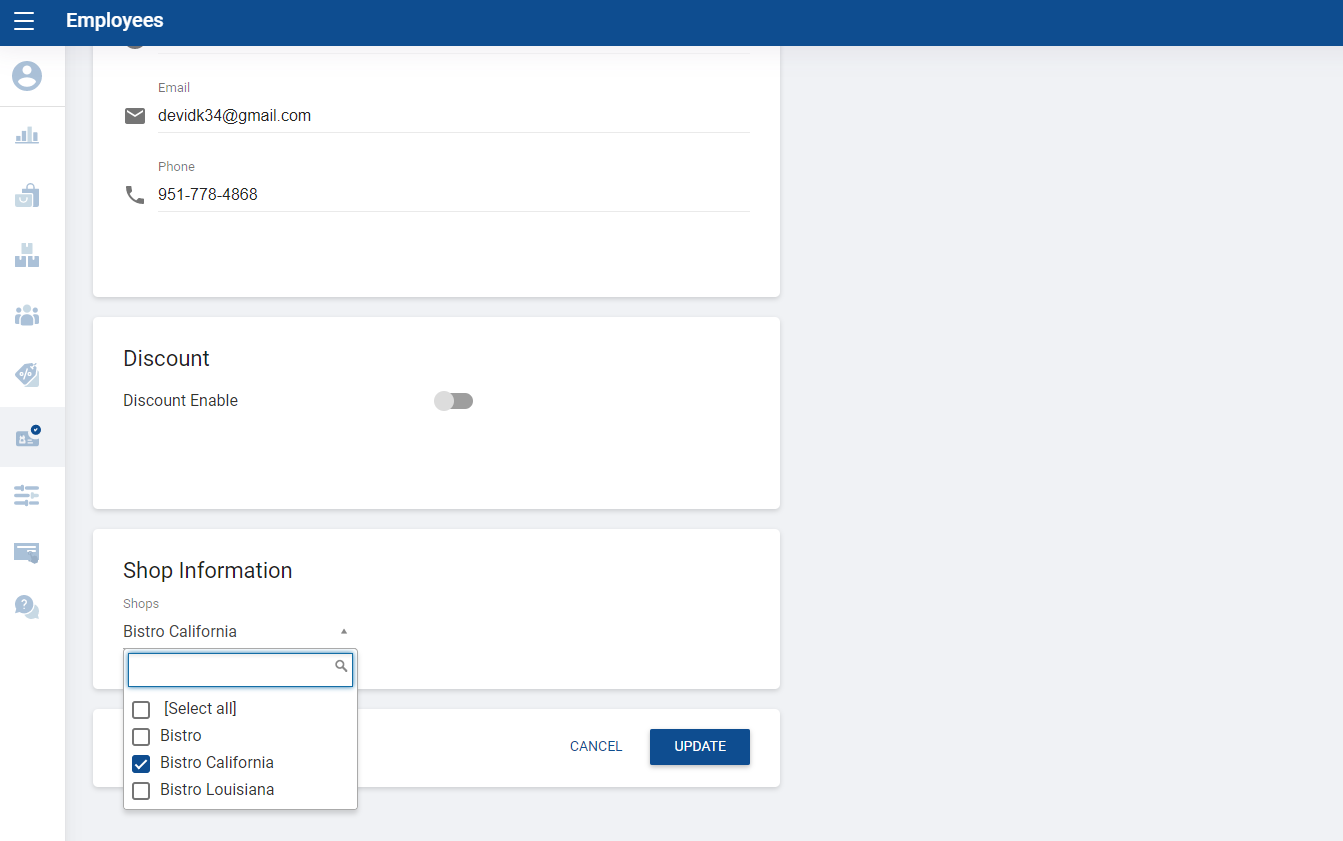
Assign The Shop

  • Now you can assign your customer to a particular shop(s). Scroll down


Was this helpful?

Yes  No
Related Articles
  • Integrate QuickBooks (Offline)
  • How to Add Charges
  • How to Add a Payment Gateway in SalesPlay POS
  • How to Allow or Block Negative Stocks in SalesPlay POS
  • How to Sync Offline Receipts in SalesPlay POS
  • How to Manage Reservations in SalesPlay POS

No luck finding what you need? Contact Us

Popular Articles
  • Dynamic QR Code Payment
  • QR Ordering System Guide for SalesPlay POS
  • How to Activate Order Notification Sound on SalesPlay POS
  • How to Setup KOT Printers in SalesPlay POS
  • E-commerce Integration with SalesPlay POS ( WooCommerce & Shopify )
KB Category
  • Affiliate Program
  • Customer Orders
  • Customers
  • Distributor Referral
  • Getting Started
  • Inventory
  • Loyalty
  • Payment
  • Product
  • Reports
  • Sales
  • Settings
  • Setup
  • User
  • Web POS

Still need help?

Contact Us

Our support team is
here for you!

Ask the Community

Connect and get answers
from fellow SalesPlay POS users.

Asset-3-3.webp
  • Privacy Policy
  • Terms & Conditions
  • Return & Refund Policy
Asset-3-3.webp
  • Privacy Policy
  • Terms & Conditions
  • Return & Refund Policy