• Point of Sale
  • Categories
    • Getting Started with SalesPlay
    • Web POS
    • Sales
    • Product
    • Inventory
    • User
    • Customers
    • Reports
    • Settings
  • Community
  • Point of Sale
  • Categories
    • Getting Started with SalesPlay
    • Web POS
    • Sales
    • Product
    • Inventory
    • User
    • Customers
    • Reports
    • Settings
  • Community
Home/Knowledge Base/Settings/How to Add Shops and Devices / Terminals in SalesPlay Back Office

How to Add Shops and Devices / Terminals in SalesPlay Back Office

February 16, 2026

In SalesPlay POS, a Shop represents a business branch or location, while a Device refers to a POS terminal used in a specific shop. This setup allows centralized management of multiple locations and efficient handling of transactions.

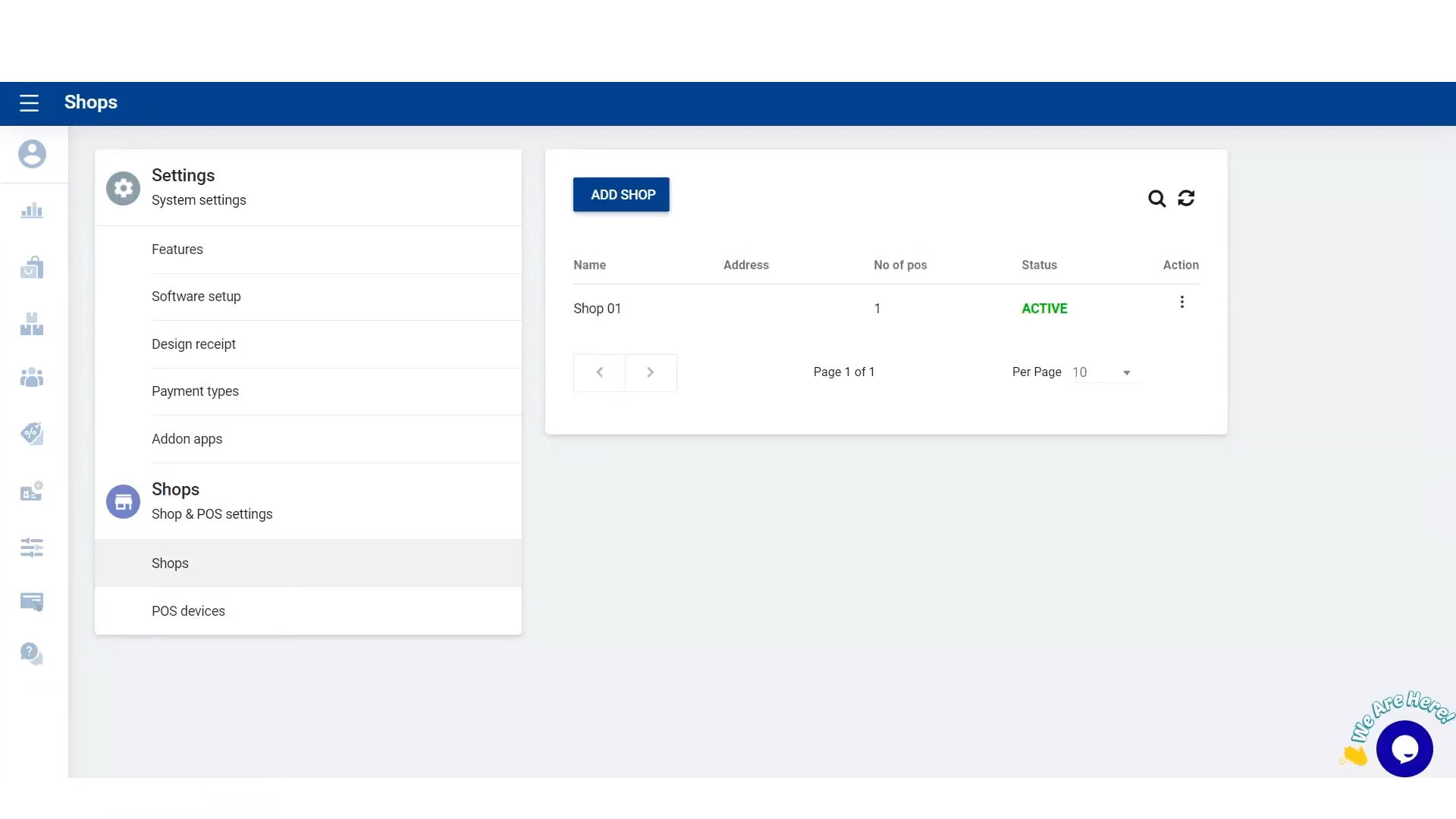
Update or Create Shops

  1. Go to Main Menu > Settings > Shops and select the particular shop you want to update.
  2. Fill in the shop details and click UPDATE.
  3. To create a new shop, click ADD SHOP, fill in the required details, and click SAVE.

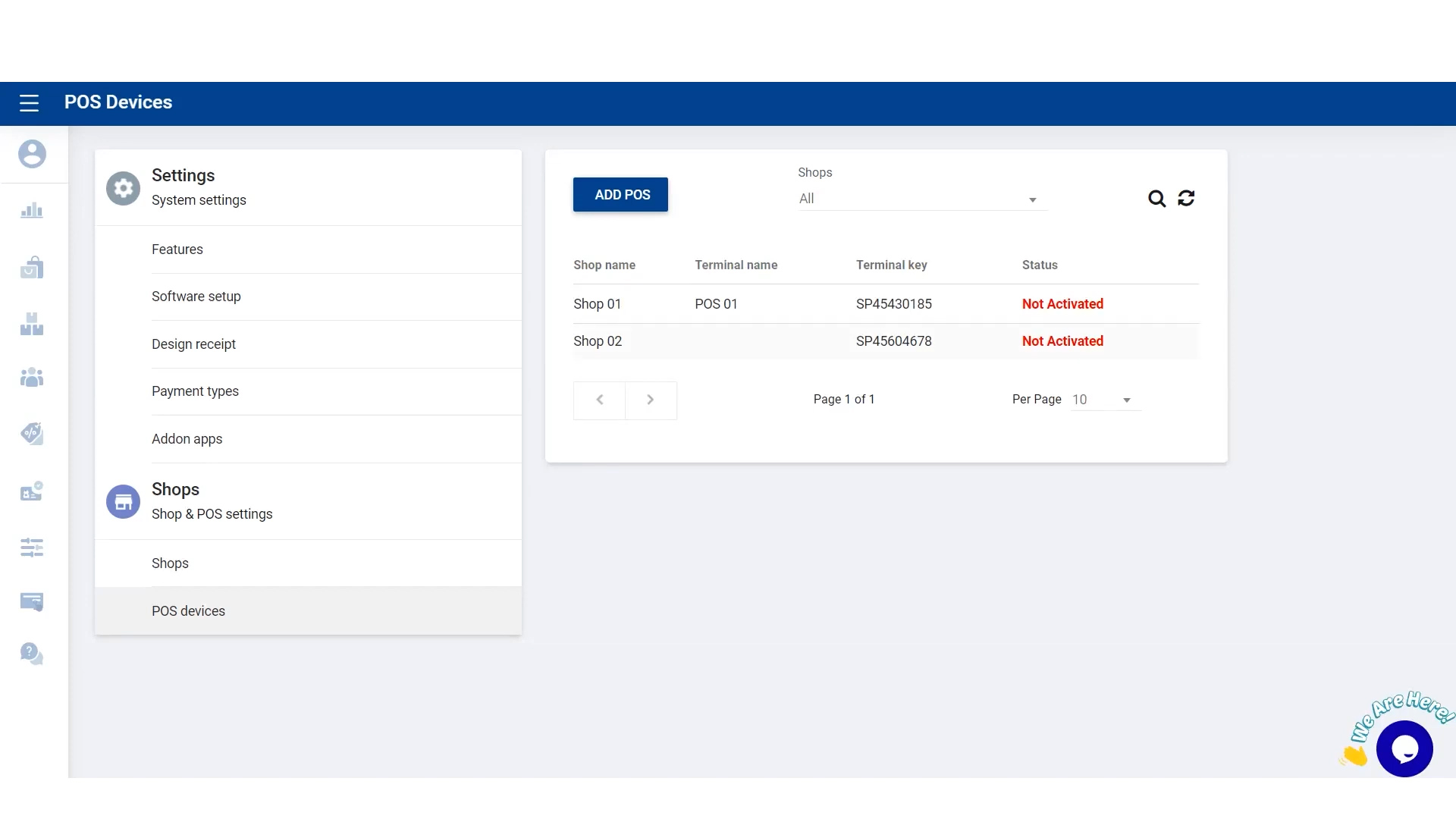
Add or Update POS Devices / Terminals

  1. Go to Shop and POS Settings > POS Devices and select the particular shop.
  2. Add a terminal name and click UPDATE.
  3. Activate the terminal using the Sign-in option.
  4. In TERMINAL INFORMATION, select the particular shop and terminal.

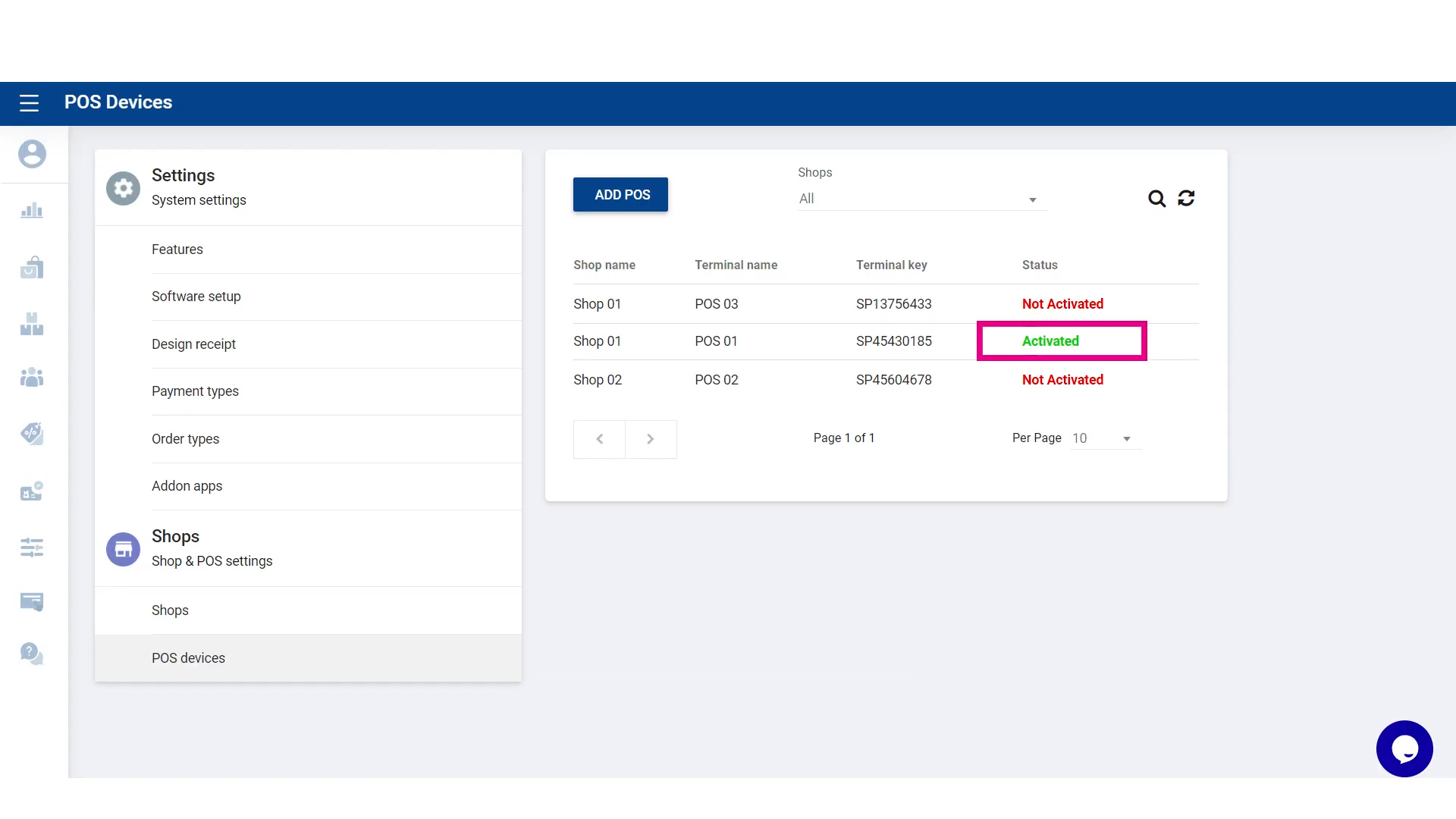
Terminal Activation

Once the terminal is successfully signed in, it will be activated in the Back Office, ready to process transactions.


Tips for Managing Multiple Shops and Devices

  • Ensure each device has a unique terminal name for easier tracking.
  • Regularly update shop details and POS devices to reflect accurate business data.
  • Activate new terminals immediately to avoid transaction delays.

Was this helpful?

1 Yes  No
Related Articles
  • Integrate QuickBooks (Offline)
  • How to Add Charges
  • How to Add a Payment Gateway in SalesPlay POS
  • How to Allow or Block Negative Stocks in SalesPlay POS
  • How to Sync Offline Receipts in SalesPlay POS
  • How to Manage Reservations in SalesPlay POS

No luck finding what you need? Contact Us

Popular Articles
  • QR Ordering System Guide for SalesPlay POS
  • How to Setup KOT Printers in SalesPlay POS
  • E-commerce Integration with SalesPlay POS ( WooCommerce & Shopify )
  • Set Up Customer Display App
  • How to Use Alternative Currency
KB Category
  • Affiliate Program
  • Customer Orders
  • Customers
  • Distributor Referral
  • Getting Started
  • Inventory
  • Loyalty
  • Payment
  • Product
  • Reports
  • Sales
  • Settings
  • Setup
  • User
  • Web POS

Still need help?

Contact Us

Our support team is
here for you!

Ask the Community

Connect and get answers
from fellow SalesPlay POS users.

Asset-3-3.webp
  • Privacy Policy
  • Terms & Conditions
  • Return & Refund Policy
Asset-3-3.webp
  • Privacy Policy
  • Terms & Conditions
  • Return & Refund Policy