• Point of Sale
  • Categories
    • Getting Started with SalesPlay
    • Web POS
    • Sales
    • Product
    • Inventory
    • User
    • Customers
    • Reports
    • Settings
  • Community
  • Point of Sale
  • Categories
    • Getting Started with SalesPlay
    • Web POS
    • Sales
    • Product
    • Inventory
    • User
    • Customers
    • Reports
    • Settings
  • Community
Home/Knowledge Base/Setup/How to Add Price Embedded Barcodes in SalesPlay POS

How to Add Price Embedded Barcodes in SalesPlay POS

February 16, 2026 Updated on February 17, 2026

Video Tutorial

SalesPlay POS allows you to use Embedded Barcodes which carry extra information about products, such as price or weight. Price-embedded barcodes simplify checkout, especially for weighted or packaged items.


What is an Embedded Barcode

  • Embedded Barcodes carry additional product data like price or quantity.
  • Example: Weighing vegetables at checkout using a barcode that includes weight information.

Types of Embedded Barcodes

  • There are two types of embedded barcodes:
  1. Weight-based:
    • Barcode includes product code/SKU and weight information.
  2. Price-based:
    • Barcode includes product code/SKU and product price.

Barcode Profiles
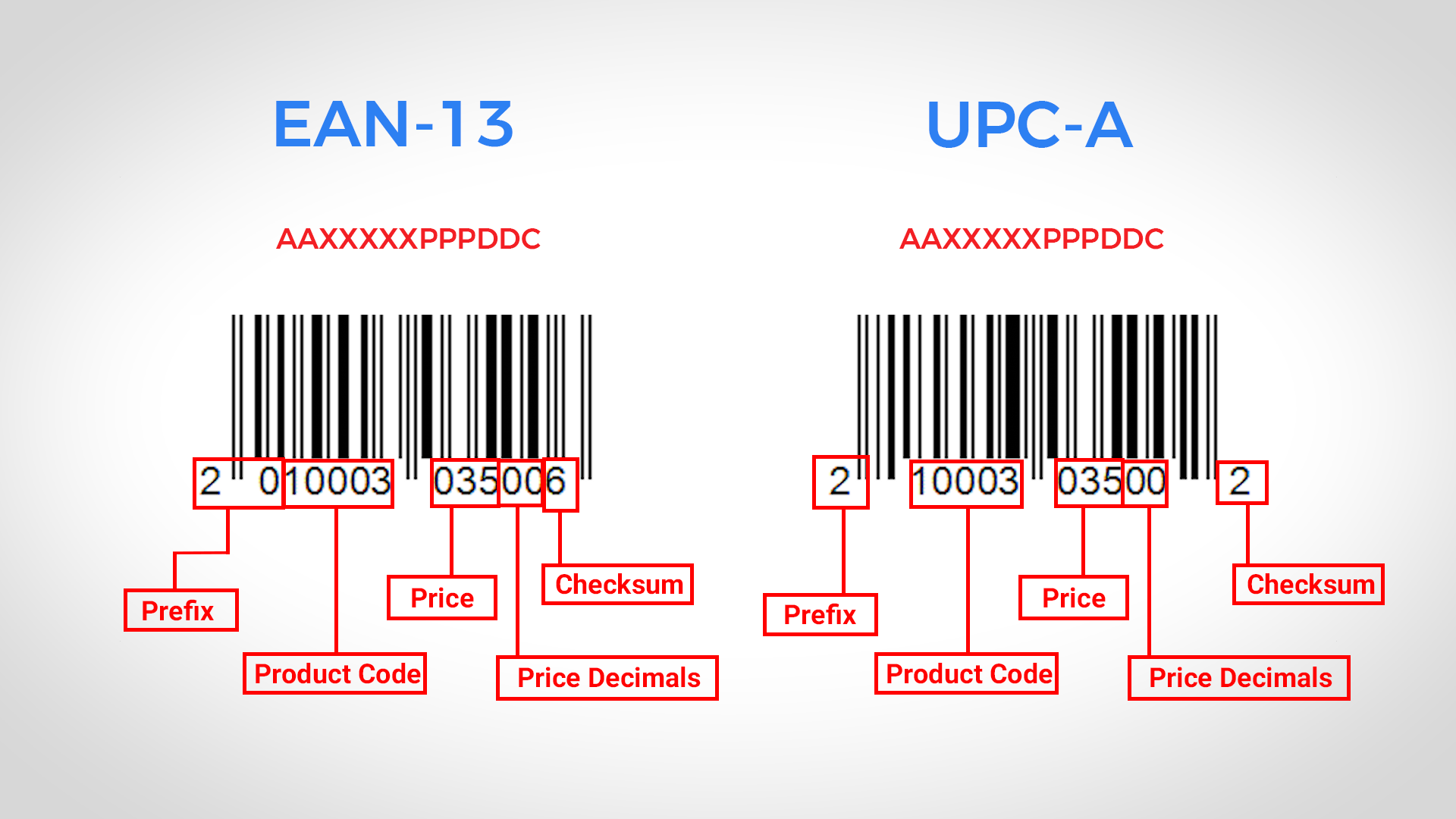


  • Two common barcode profiles: EAN 13 and UPC-A.

EAN 13 Setup (13 digits)

  • Format: ‘AAXXXXXPPPDDC’.
  • ‘AA’ – prefix, ‘XXXXX’ – product code, ‘PPP’ – price, ‘DD’ – price decimals, ‘C’ – checksum.

UPC-A Setup (12 digits)

  • Format: ‘AXXXXXPPPDDC’.
  • ‘A’ – prefix, ‘XXXXX’ – product code, ‘PPP’ – price, ‘DD’ – price decimals, ‘C’ – checksum.

Steps to Add Price Embedded Barcodes


  1. Login to the POS Back Office Web Portal.
  2. Select Settings from the main menu.
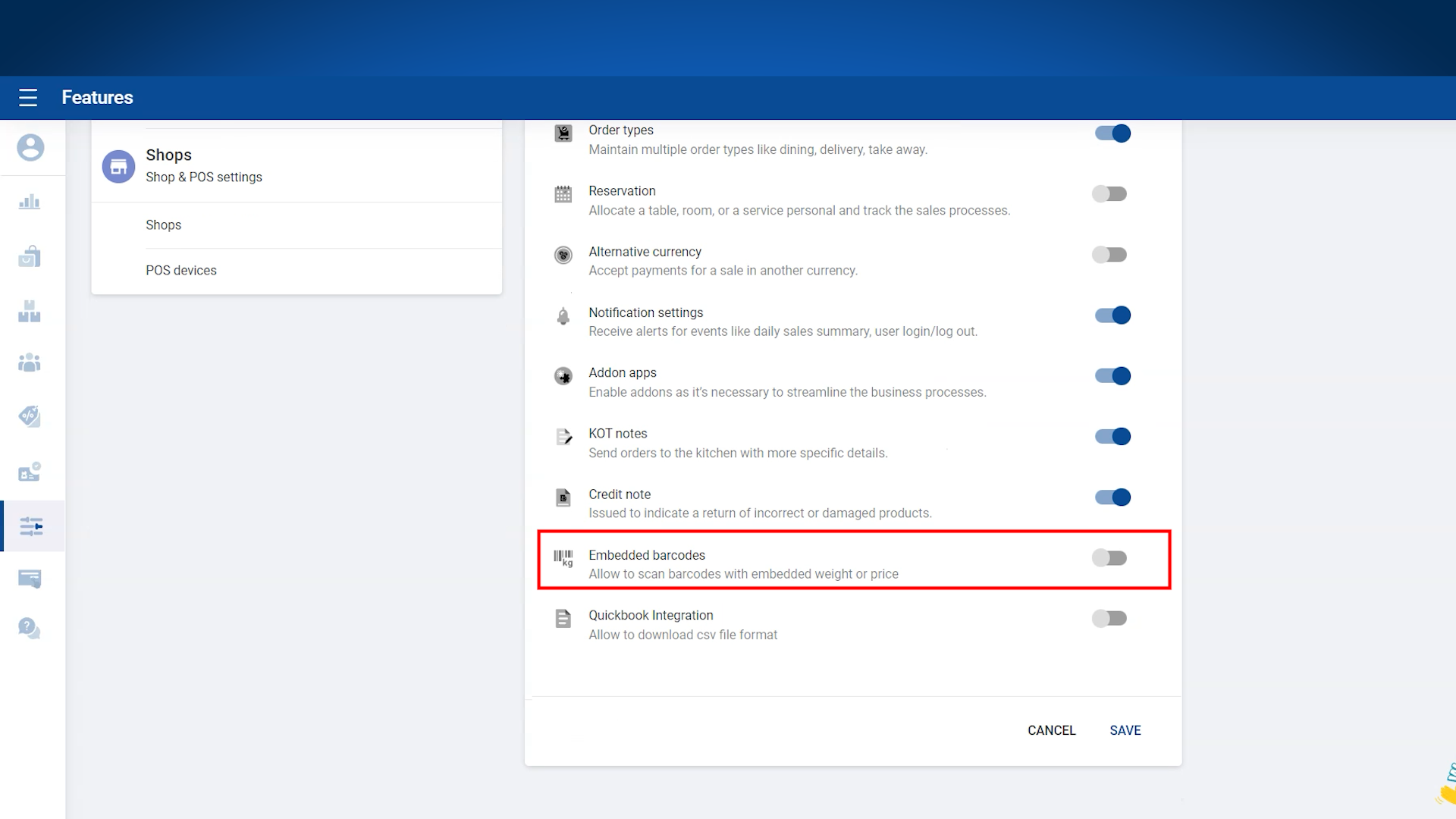
  3. Go to Features.
  4. Enable Embedded Barcode section.
  5. Click Save. (Embedded Barcode will appear as a sub-menu in Settings)
  6. Click Embedded Barcodes from the sub-menu.
  7. Click Add New.
  8. Select Barcode type as Price Embedded.
  9. Enter the correct digits for the barcode. (Set PLU value to 0 or leave empty if product codes have 5 digits)
  10. Enable Status.
  11. Click Save.

Notes:

  • If your product codes have less than 5 digits, configure the PLU value based on the number of digits.
  • Always double-check barcode digits to ensure proper scanning and price capture at checkout.

Was this helpful?

1 Yes  No
Related Articles
  • Issues Caused by Damaged Network Cables
  • How to Use Xero Accounting Software with SalesPlay POS
  • How to Print Receipts in Other Languages with SalesPlay POS
  • Standard Table Layout Setup Process in SalesPlay POS
  • How to Use Open Bill Sync Option in SalesPlay POS
  • How to Setup Dual Display in SalesPlay POS

No luck finding what you need? Contact Us

Popular Articles
  • QR Ordering System Guide for SalesPlay POS
  • How to Setup KOT Printers in SalesPlay POS
  • E-commerce Integration with SalesPlay POS ( WooCommerce & Shopify )
  • Set Up Customer Display App
  • How to Use Alternative Currency
KB Category
  • Affiliate Program
  • Customer Orders
  • Customers
  • Distributor Referral
  • Getting Started
  • Inventory
  • Loyalty
  • Payment
  • Product
  • Reports
  • Sales
  • Settings
  • Setup
  • User
  • Web POS

Still need help?

Contact Us

Our support team is
here for you!

Ask the Community

Connect and get answers
from fellow SalesPlay POS users.

Asset-3-3.webp
  • Privacy Policy
  • Terms & Conditions
  • Return & Refund Policy
Asset-3-3.webp
  • Privacy Policy
  • Terms & Conditions
  • Return & Refund Policy