• Point of Sale
  • Categories
    • Getting Started with SalesPlay
    • Web POS
    • Sales
    • Product
    • Inventory
    • User
    • Customers
    • Reports
    • Settings
  • Community
  • Point of Sale
  • Categories
    • Getting Started with SalesPlay
    • Web POS
    • Sales
    • Product
    • Inventory
    • User
    • Customers
    • Reports
    • Settings
  • Community
Home/Knowledge Base/Product/How to Create Discount Plans Attached to the Receipt

How to Create Discount Plans Attached to the Receipt

February 11, 2026


Special Note

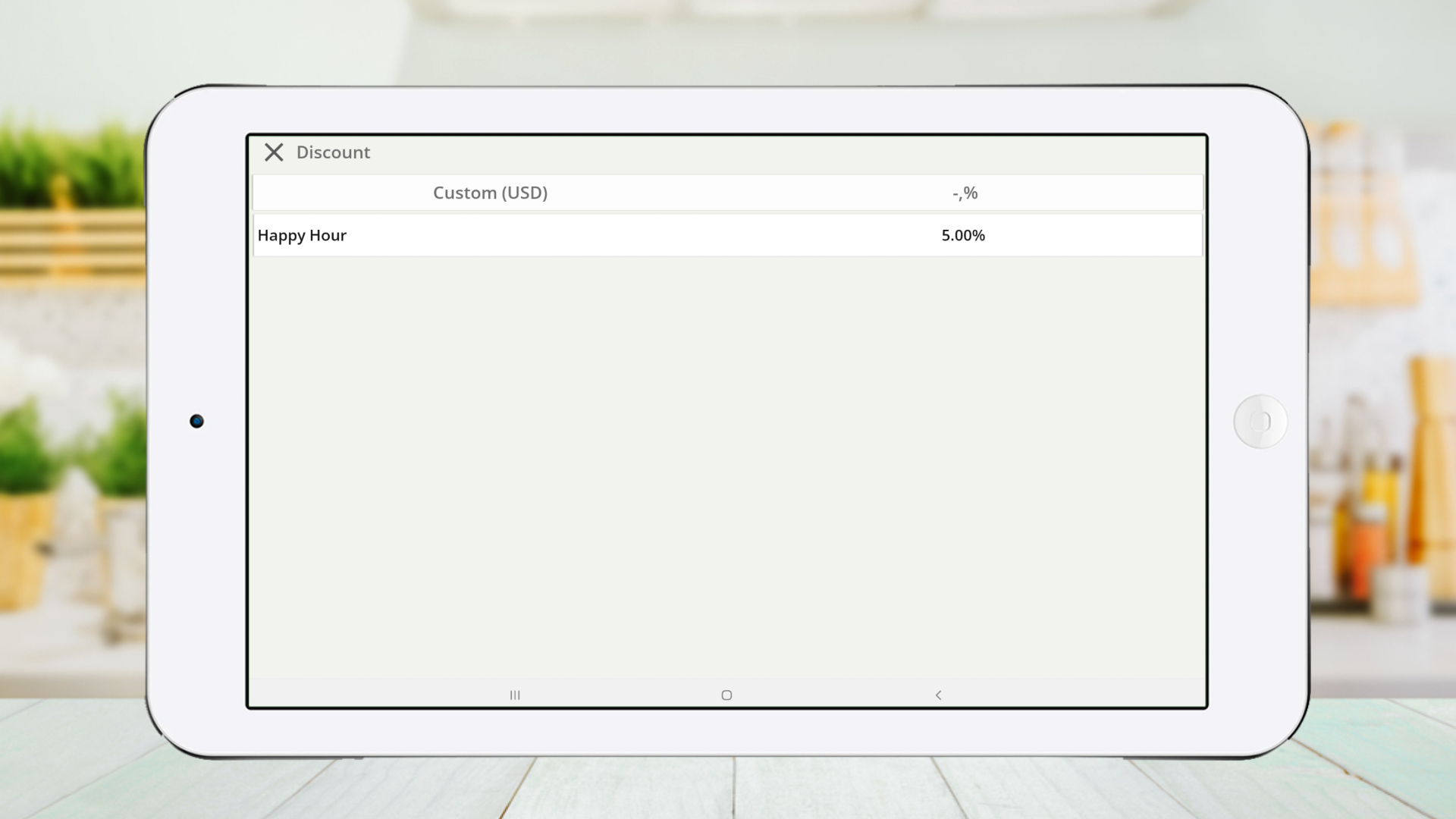
  • As part of the restructuring process, the Product-wise Discount plan options are now accessible within the item customization dialog, while Receipt-wise Discount plans are under a discount icon in the main receipt interface.

  • You can toggle these discounts on or off as needed.


Steps to Create a Discount Plan

1. Login to SalesPlay POS Back Office

  • Select ‘Promotions’ from the main menu.

  • Go to ‘Discounts’.


2. Click ‘CREATE DISCOUNT PLAN’


3. Type the Discount Plan Name


4. Select the Shop


5. Select the Discount Attachment Method


6. Select Discount Type (Value / Percentage)
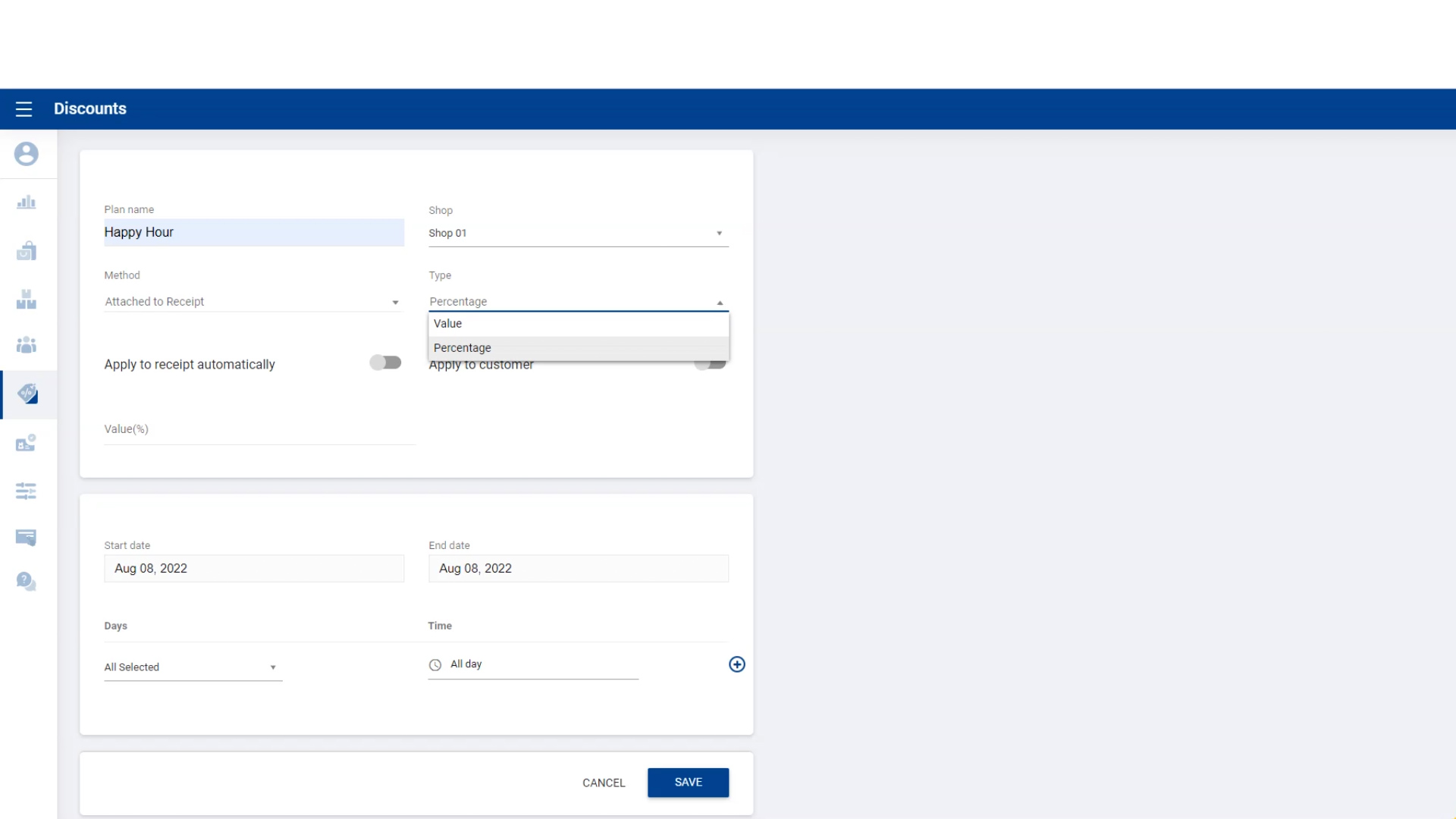
Step 6


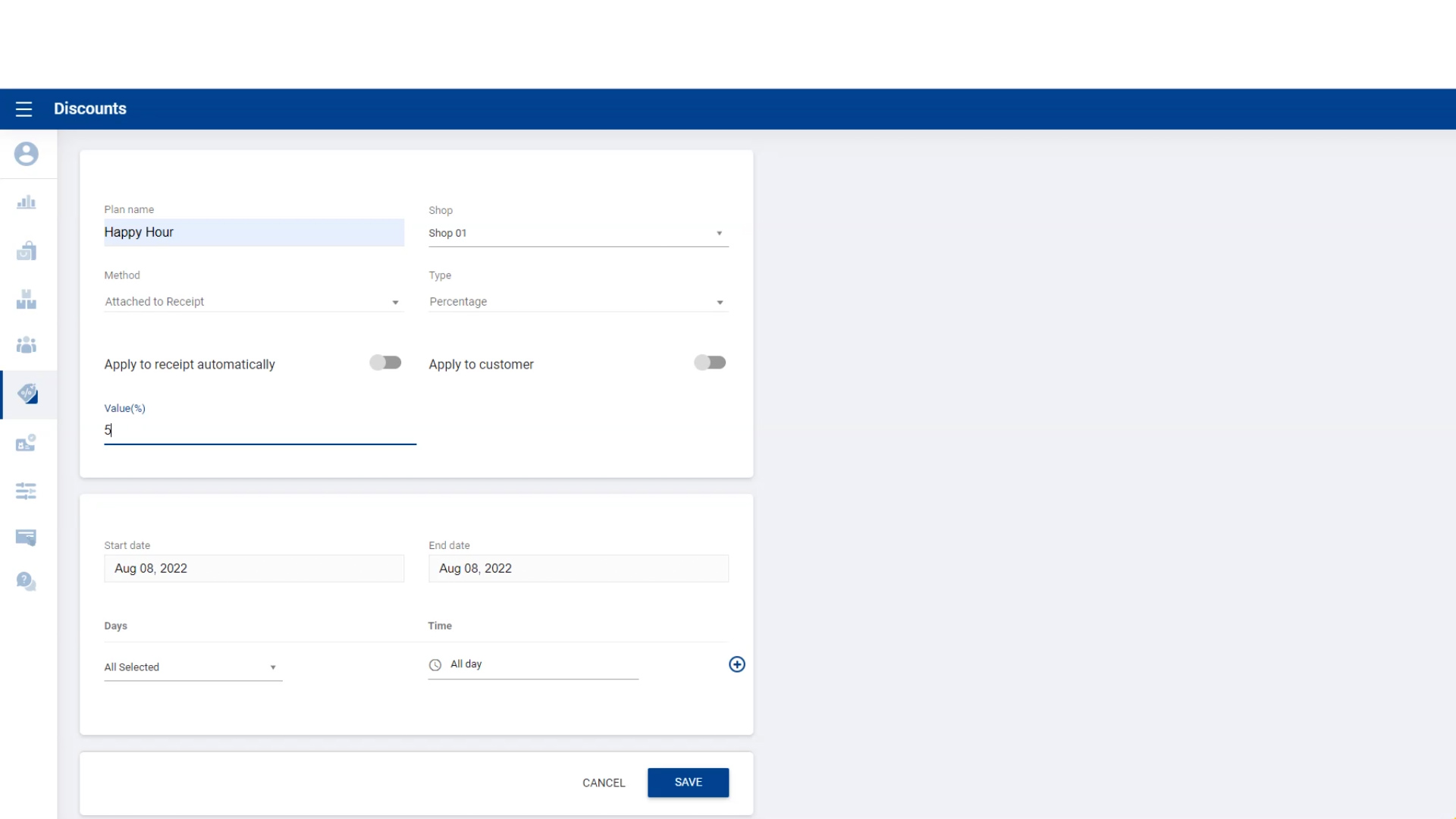
7. Enter the Percentage Value

Step 7


8. Select Discount Start Date and End Date


9. Select Days of the Week for Discount


10. Select Time of Day for Discount


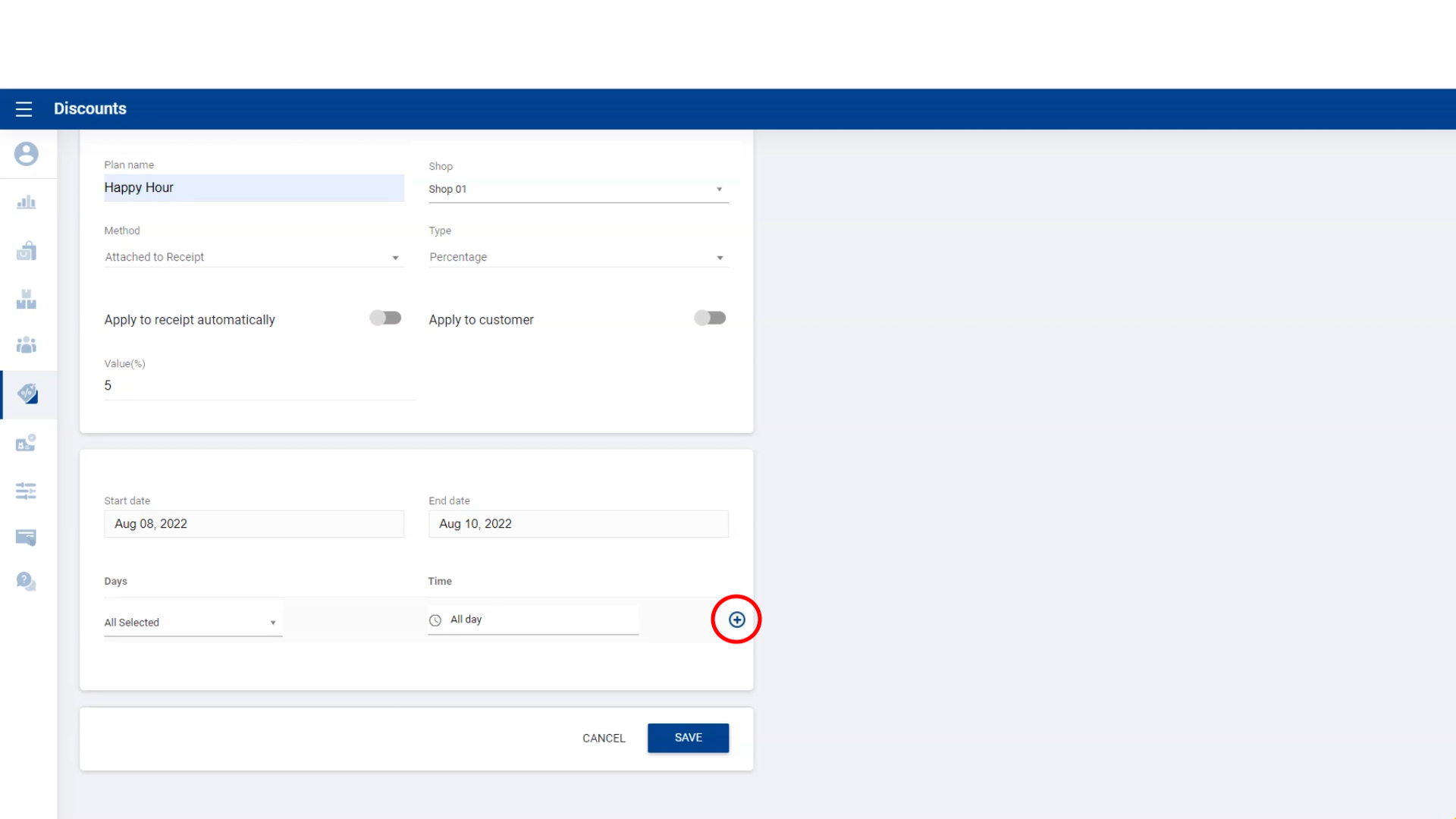
11. Click ‘Add Button’ before saving

  • Then click ‘Save’.

Step 11


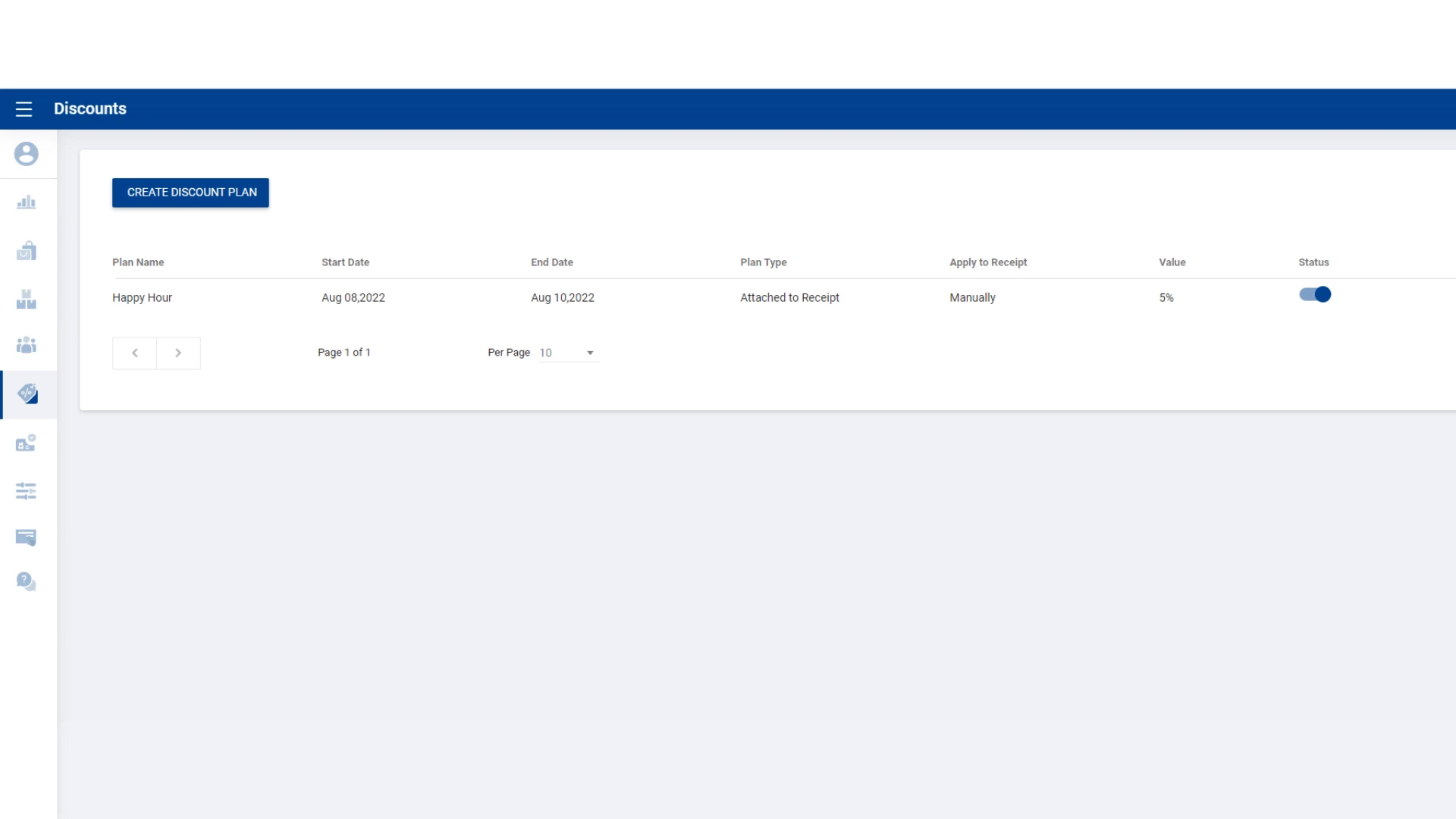
12. Discount Plan Saved Successfully

Step 12


Adding Discounts to Receipts Manually

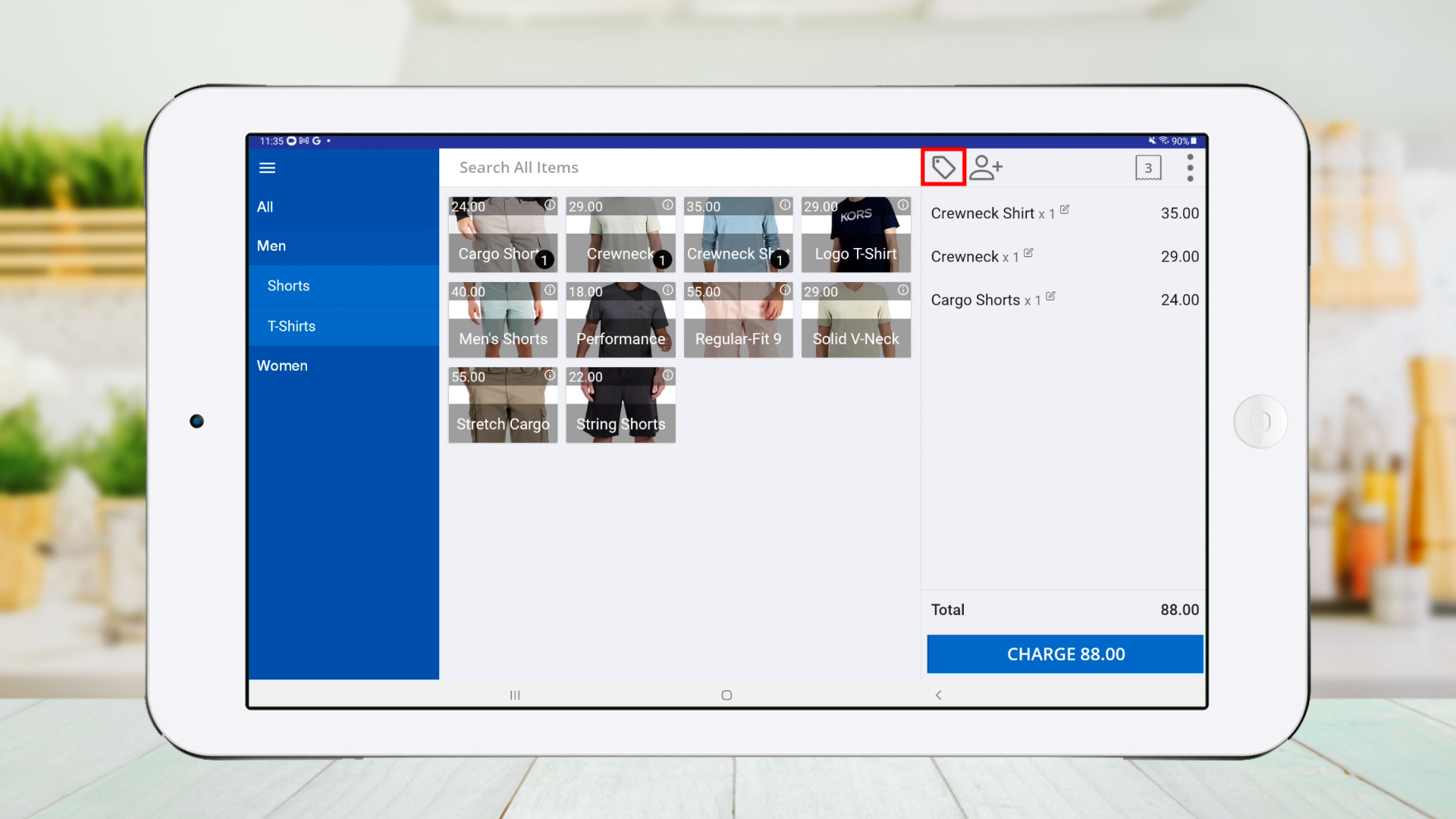
  1. Add products to the cart.

  2. Click the ‘Discount Button’.

Manual Discount


1. Select Discount Plan

Select Plan


2. Click ‘CHARGE’

  • Discount is successfully added to the receipt.


Automatic Discount Application

  1. Click on the Existing Plan

  1. Enable ‘Apply to receipt automatically’ and click ‘SAVE’

  1. Add products to the cart.

  • Discount will be automatically applied.

  1. Click ‘CHARGE’

  • Discount appears on the receipt successfully.


This format keeps your step-by-step structure, images, and video, while improving readability and organization for your users.

Was this helpful?

1 Yes  No
Related Articles
  • How to Create a Composite Product
  • How to Create Modifiers
  • How to Print Labels
  • How to Create a Combo Product
  • How to Use Barcodes and Find Products Easily
  • How to Use Variants of Products

No luck finding what you need? Contact Us

Popular Articles
  • Issues Caused by Damaged Network Cables
  • Dynamic QR Code Payment
  • QR Ordering System Guide for SalesPlay POS
  • How to Activate Order Notification Sound on SalesPlay POS
  • How to Setup KOT Printers in SalesPlay POS
KB Category
  • Affiliate Program
  • Customer Orders
  • Customers
  • Distributor Referral
  • Getting Started
  • Inventory
  • Loyalty
  • Payment
  • Product
  • Reports
  • Sales
  • Settings
  • Setup
  • User
  • Web POS

Still need help?

Contact Us

Our support team is
here for you!

Ask the Community

Connect and get answers
from fellow SalesPlay POS users.

Asset-3-3.webp
  • Privacy Policy
  • Terms & Conditions
  • Return & Refund Policy
Asset-3-3.webp
  • Privacy Policy
  • Terms & Conditions
  • Return & Refund Policy